

bebrassie UniversityGroups & Teams
The player profile in the group feature
As a coach or captain you want to see where a player stands and whether they are developing. The group feature in bebrassie offers two ways to do this, each compared with an earlier period.
Member detail in the Stats tab
In your group, open the Stats tab and select a player under Member detail. You then see a table with the columns Metric, Current, Previous and Change. Green stands for an improvement, red for a decline.
You adjust the period with Show filters. The Strokes Gained rows follow the comparison group you select. Export member downloads the values as an Excel file.
The member's player profile
In the Members tab, View member switches you to the player's view, provided they have an active subscription and you have the right to do so. In the dashboard you then find their core stats in the Player profile tab. In the table view, a green icon means an improvement, a red one a decline and a gray one no change.
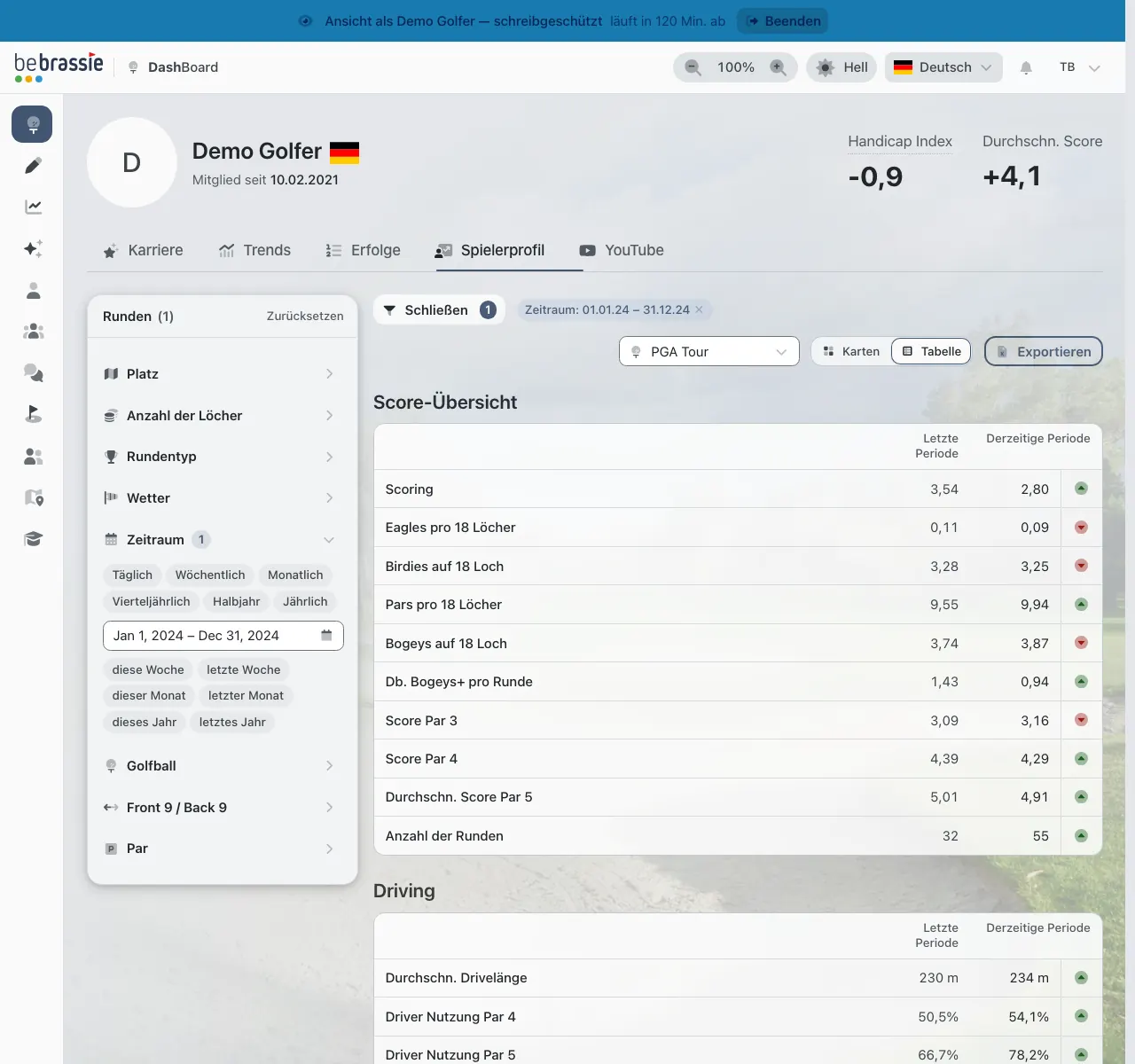
There you will find, for example:
- scoring and birdies per 18 holes
- average drive length and driver use on par 4s and par 5s
- fairways in regulation and greens in regulation
- distance to the hole by distance range
This data helps you spot a player's strengths and weaknesses and tailor their practice to them.