

First Steps
Where can I redeem my licence key?
If you bought or were given a licence key, you use it in your profile to unlock bebrassie or extend your access.
How to redeem the key
- Sign in with your browser at app.bebrassie.com and open your Profile under MyAccount.
- In the Subscription status section, find the Licence key field.
- Enter the key, paying attention to upper and lower case.
- Confirm with Use licence key.
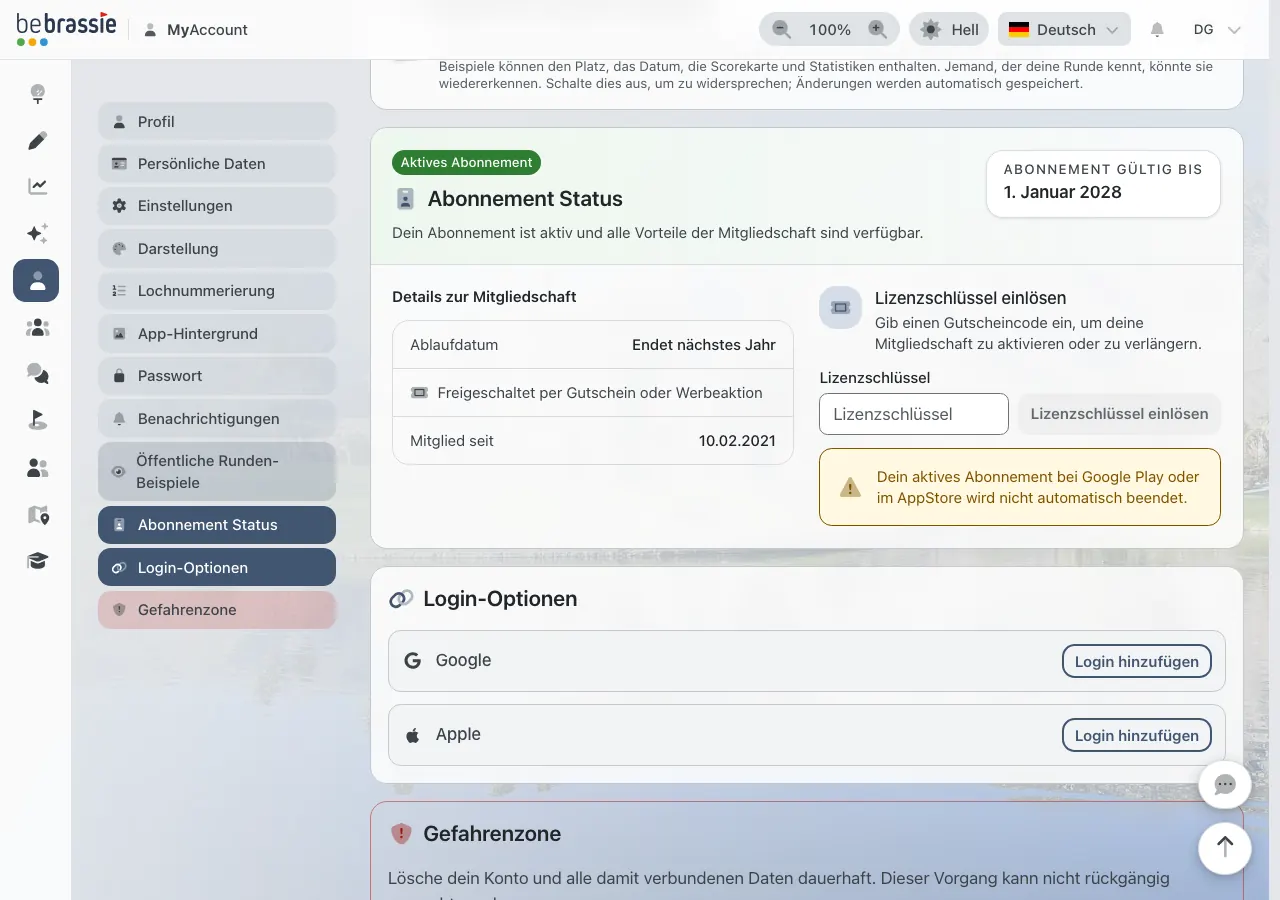
In the Android app you redeem it under MYSUBSCRIPTION. The field may be missing inside the iOS app. In that case, use your browser.
What happens to your term
A key extends an existing licence by its full number of days. If you have 100 days left and redeem a 365-day key, your licence runs for 465 days.
If you have a subscription
A licence key does NOT end a subscription from the App Store or Play Store. Cancel it yourself in the store in question, otherwise it keeps running.
You can still redeem the key right away. Its days are added to the current expiry date of your subscription.
Where do I enter my handicap?
bebrassie calculates your Handicap Index from your rounds under the World Handicap System (WHS). To give the calculation the right starting point, you can enter the value you had before your first signed round.
Where to enter the value
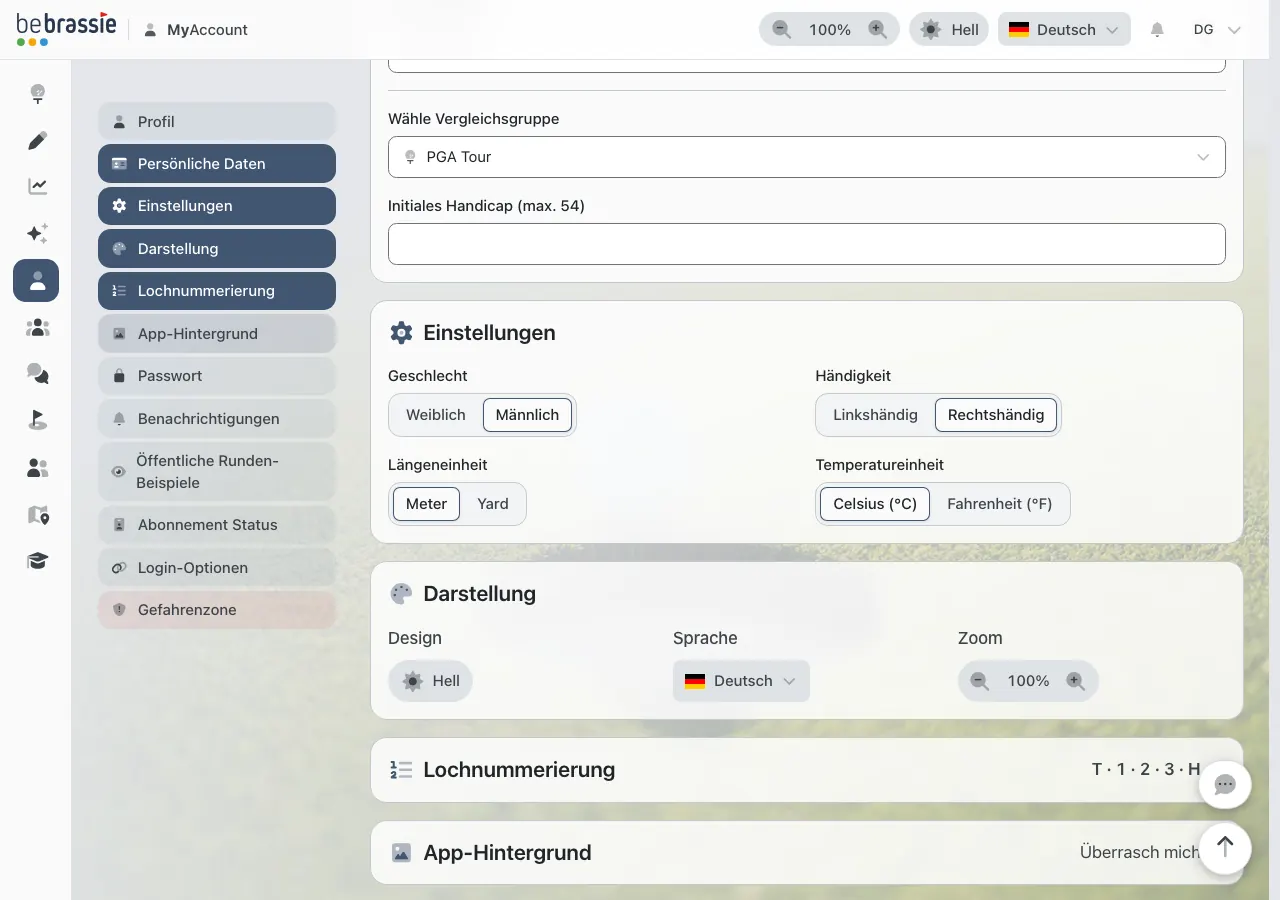
The field is called Initial handicap (max 54) and is in your profile under Personal data. Enter the Handicap Index you had at the time of your first signed round. If you change the value later, all rounds that count for handicap are recalculated.
How the index comes about
Under the WHS, the Handicap Index is generally the average of the best eight Score Differentials of your last 20 counting rounds. So it depends mainly on the rounds. You create rounds you want to add after the fact in EditRounds. Score-only rounds can count toward your handicap too if you turn on Count for handicap.
The calculation is based on the core criteria. The app can't take competition-related adjustments such as the CR adjustment (formerly CBA) into account.
How does your first round with bebrassie work?
Your first round with bebrassie has four parts: preparation, tracking on the course, post-round review and analysis.
1. Before the round
- Install the app on your iPhone or Android smartphone and, if you like, on your smartwatch.
- Create an account in the app or at app.bebrassie.com.
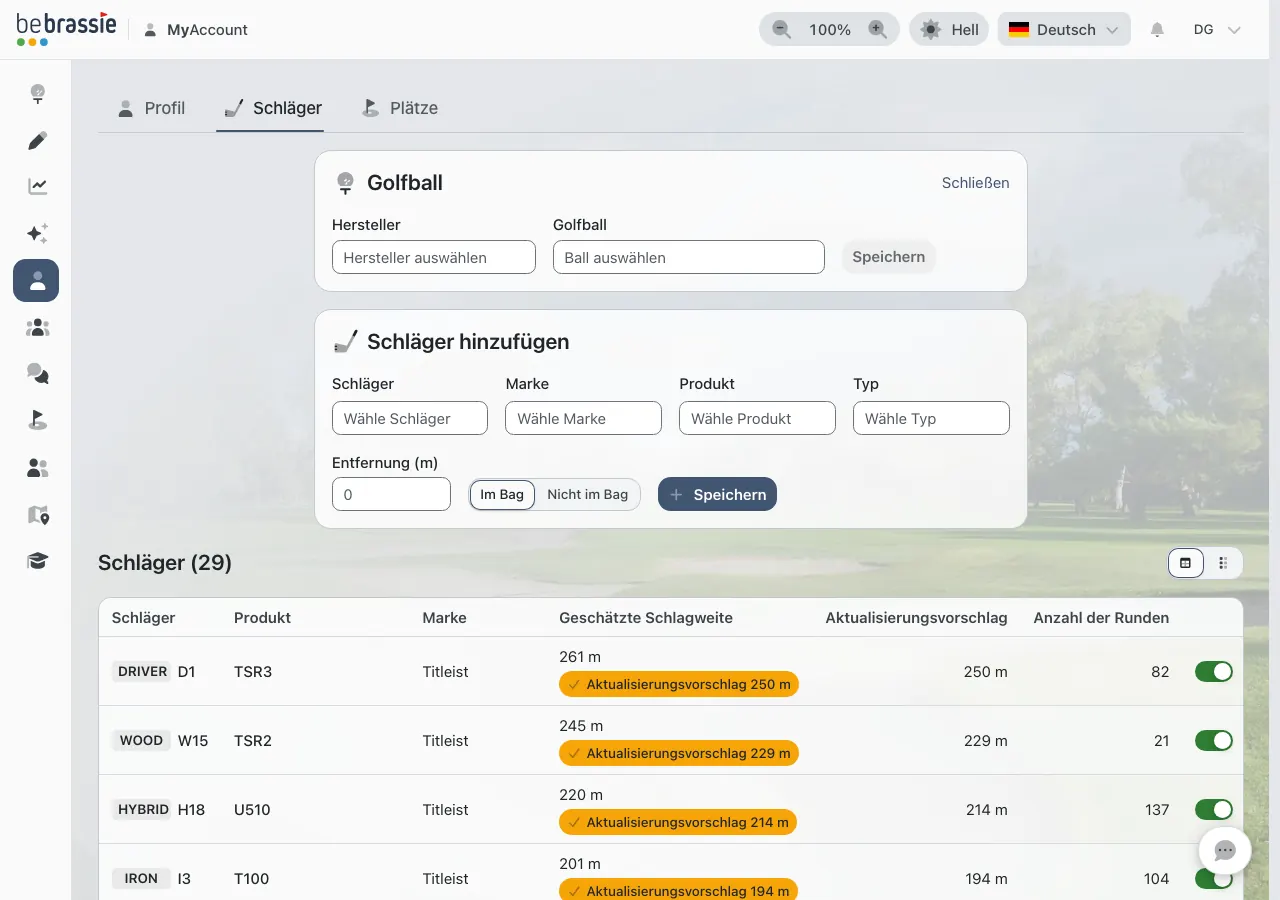
- Fill in your profile. Handedness and your clubs Open in the app with their distances matter most, because the app later uses them to pick the club automatically.
- In the app, share your location and allow background refresh. Tracking needs this during the round.
- Download the course of your first round in advance so that the hole data is available offline. On iOS you do this in the Play tab under Courses, on Android under MYCOURSES.
2. On the course
- Start the round. On iOS, tap Start round in the Play tab; on Android, open PLAYGOLF.
- Select the course and the starting hole.
- Carry your phone in your trouser pocket, ideally at the back. With a smartwatch, the watch detects your shots. Watch and phone must be connected for this.
During the round, the app mainly detects the long shots. You enter chips, putts and the flag position yourself, most easily right after each hole, or otherwise later in the post-round review.
3. After the round
- End the round and upload it, ideally with a good internet connection. On iOS you do this in the Rounds tab, on Android under UPLOADROUNDS.
- Open the round under your unsigned rounds Open in the app. You can do the post-round review on a smartphone, tablet or computer.
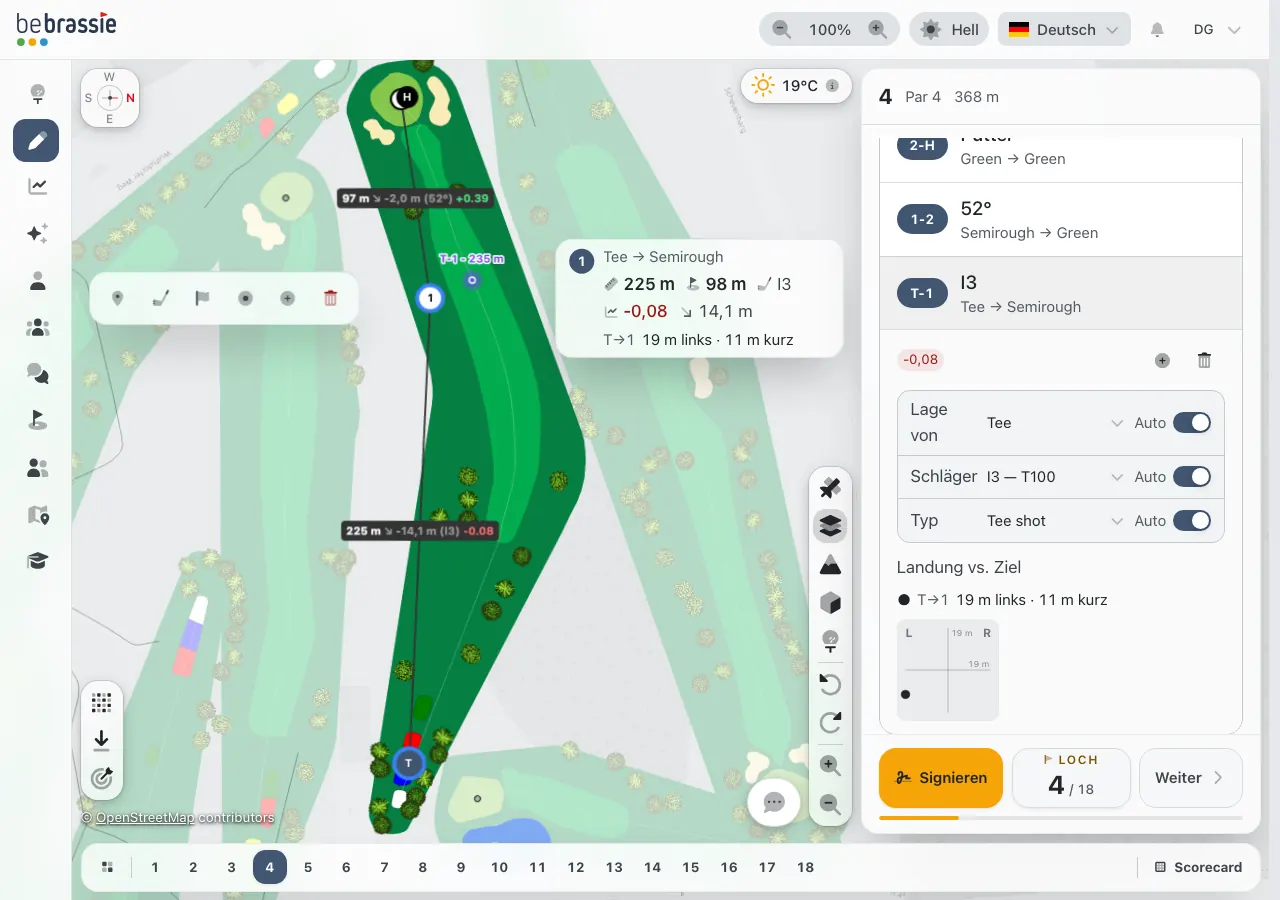
- Check the detected shots, set the flag and putts, and correct the clubs if necessary.
- Finish the round with Sign. Only then does it count for your analysis.
4. Analysis
With the signed round you can analyze your game:
- Strokes Gained in all areas of the game
- deviations from the target and distances per club
From this data you can create a game plan for your next tournament round and set a target for each shot. You find your plans under your game plans Open in the app.
I can't find my clubs?
If you can't find a model when setting up your clubs Open in the app in bebrassie, it is probably not yet in our database. With so many golf clubs on the market, we can't cover every manufacturer, model and variant.
We are happy to add your clubs, though. Send us a message with the exact details (manufacturer, model, type) at:
How can I adjust the par on a hole?
bebrassie doesn't always show a course the way it is actually played. If the par on a hole is wrong, you create your own version of the course. Only you can see it.
Before the round
- In your profile, open the Courses section and select Create a new course.
- Choose the golf course under Select a course, the tee under Choose your tee box and holes 1 to 18 under Hole range.
- Under Course preview, click Adjust course information and change the par in the table.
- Click Finish course selection, enter an easily recognizable name under Give your course a name and confirm with Create course.
You will also find the course under this name in the iOS and Android apps.
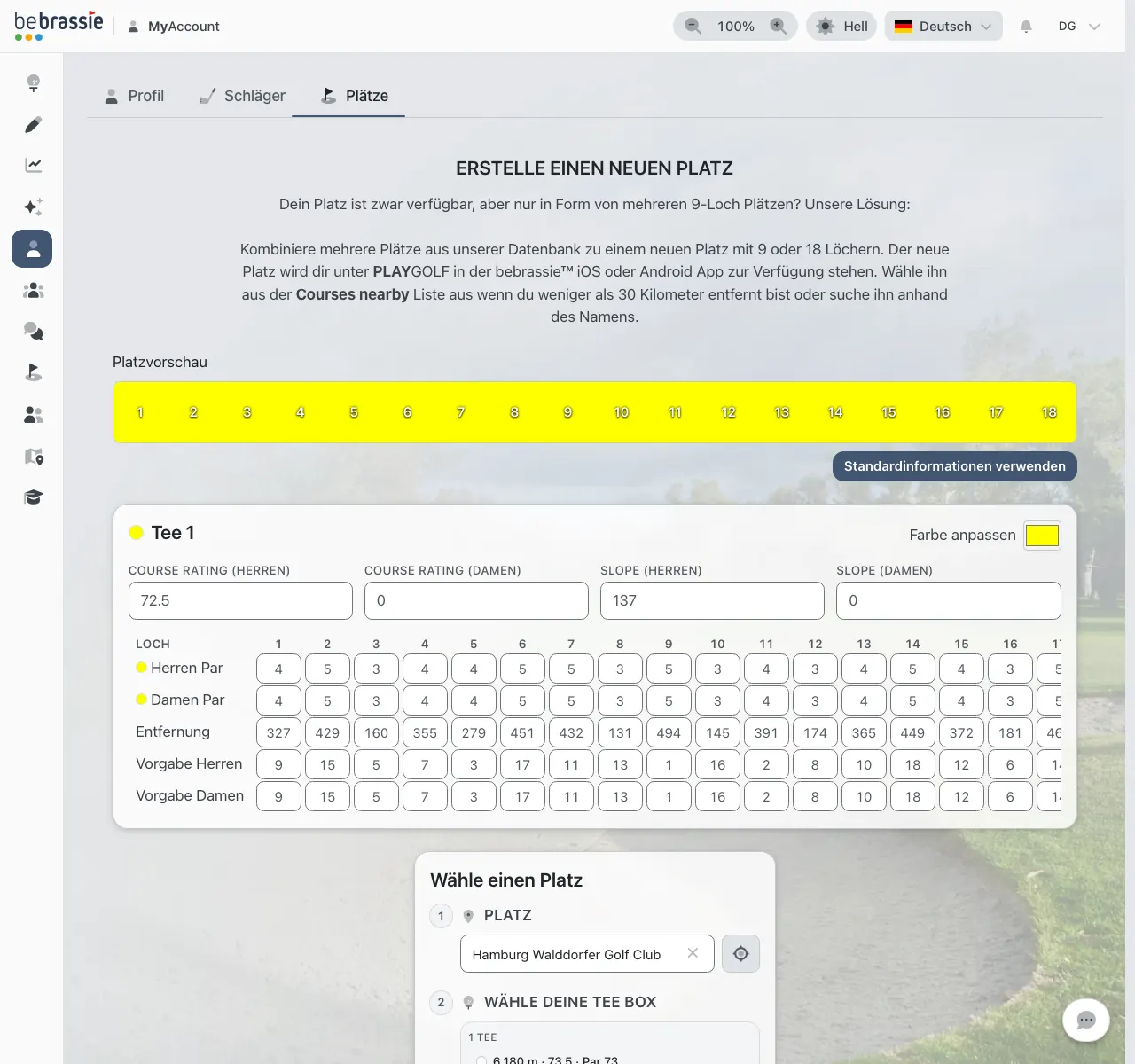
After the round
If you have already played and only then notice the par was wrong, open the round in the round editor. In the Scorecard step you will see Par or course info wrong? with the Edit course link.
The procedure is the same as before the round. At the end you also select Replace round course. If the round was already signed, this makes it unsigned: check it in the round editor and sign it again.
How can I create a new course or change an existing one?
A course in bebrassie doesn't match what you play, or your facility has several nine-hole loops? Then you create your own version from a golf course in the database.
- In your profile, open the Courses section and select Create a new course.
- Choose the golf course under Select a course, the tee under Choose your tee box and the holes you want under Hole range. If a course is divided into nine-hole loops, you combine them with Add another course.
- If needed, adjust the par under Adjust course information.
- Click Finish course selection, give the course a unique name and confirm with Create course.
The new course then appears under Your created courses. Only you can see it, and other users can't select it. You can view and delete a created course there. To make changes, you create a new version.
If the golf course isn't in the database at all, send us a message at support@bebrassie.com asking us to add it. We will pass your request on to our mapping team.
How can I set or change my home course?
You can set the course you play most often as your home course in bebrassie. It then appears in the player profile on your dashboard, and in the stats filters it has its own entry under Home.
How to set it
- Open your courses Open in the app in your profile.
- Search for the course under Choose your home course.
- Confirm with Save.
In the table view of Your played courses, you can also do this directly on the course with Save as home course.
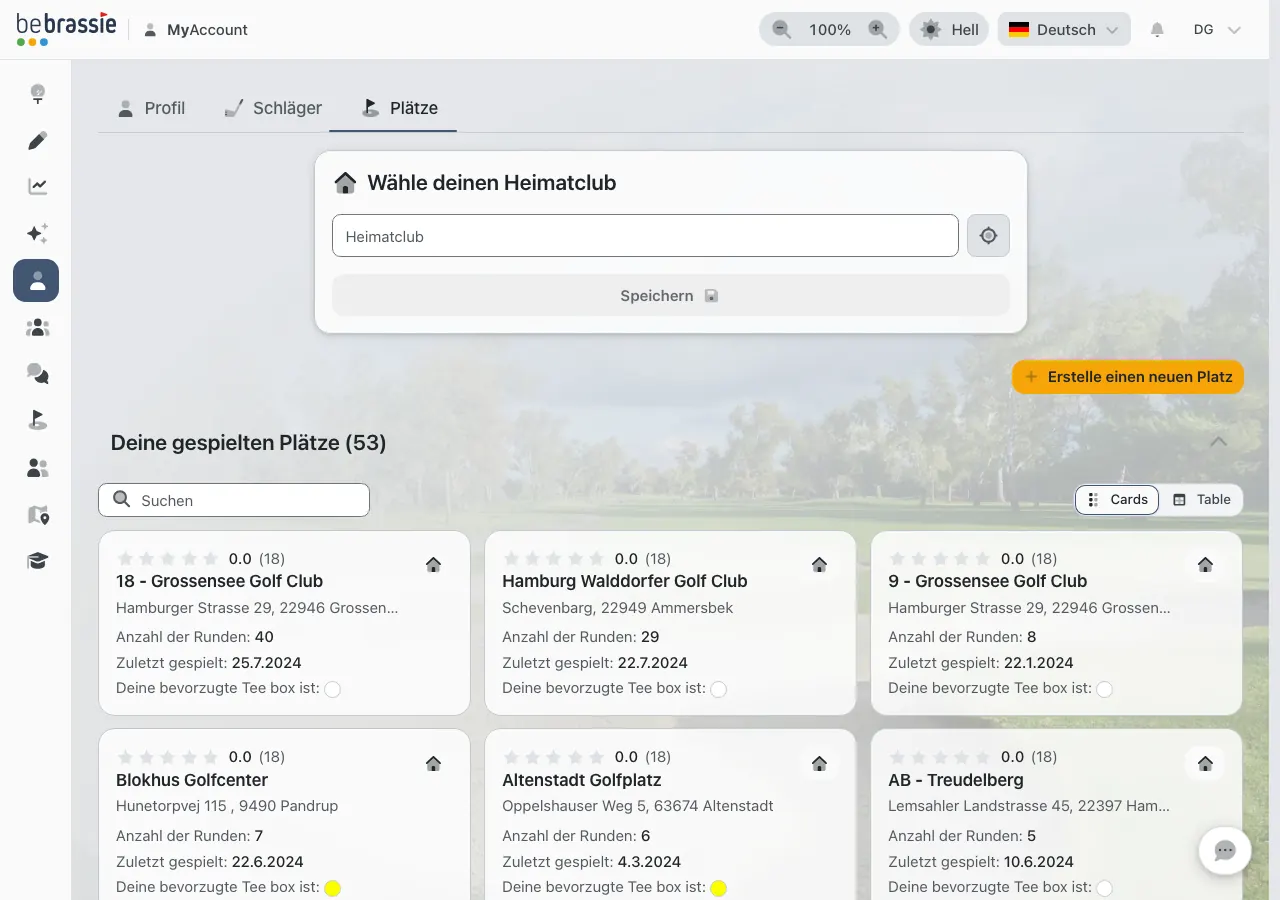
How to change it
Select a different course under Your home course and confirm with Save. Delete removes the home course again.
How do I set up my clubs?
New accounts in bebrassie are set up with a standard set of clubs. So that the app picks the right club during the post-round review and your stats fit your bag, replace it with your own clubs.
Add clubs
- Open your clubs Open in the app in your profile. On iOS you find them in the More tab under Clubs & Ball. On Android, use the browser at app.bebrassie.com.
- Select Add club.
- Fill in Club, Brand, Product and Type.
- Under Distance, enter the normal distance you hit with this club: rather the carry for shots to the green, rather the total length for clubs you use off the tee.
- Use In my bag or Not in my bag to set whether it belongs to your bag, and confirm with Save.
Remove standard clubs
Then remove the preset clubs with Remove. If you have already tracked rounds with a standard club, Replace for X round(s) also replaces it with your own in those rounds.
Wedges and missing models
For wedges we usually distinguish between PW, GW, SW and LW. For some models we also offer the loft as a distinction.
If you can't find a club in the database, send us a message at support@bebrassie.com asking us to add it.
How can I turn two 9-hole courses into an 18-hole course?
Many facilities consist of several nine-hole loops, and not every combination is stored in bebrassie as its own course. You can put together an 18-hole course yourself from two 9-hole courses in the database.
- In your profile, open the Courses section and select Create a new course. On iOS you reach the courses in the More tab under Courses.
- Choose the first loop under Select a course, the tee under Choose your tee box and the holes under Hole range.
- Click Add another course and select the second loop in the same way.
- If needed, adjust the par under Adjust course information.
- Click Finish course selection, give the course a name and confirm with Create course.
At a facility with three loops, you can create any combination this way and also combine holes from different courses. The new course is available only to you.
At what skill level does bebrassie make sense?
Many golfers wonder whether an analysis app like bebrassie only pays off from a certain handicap. As soon as you play on the course regularly, it is worth taking a closer look at your game.
Of course, a player with a single-digit handicap benefits from different features than a player with a handicap of 36.
With a high handicap, you are more likely to gain your first insights into the distances and deviations of each club. With a single-digit handicap, you compare your game more with other players and derive an objective profile of strengths and weaknesses.
The earlier you know your own game and use it in a way that suits the course, the earlier you make better decisions on the course.
In two videos, Oliver Neumann explains in German from when and for whom using the app pays off:
Which smartwatches does bebrassie run on?
On the course, a smartwatch can detect your shots while your phone stays in your pocket. Whether a watch runs bebrassie depends on its operating system.
Apple Watch
The watch needs watchOS 8 or later, the iPhone iOS 18 or later. We recommend an Apple Watch Series 4 or later, or an Apple Watch SE. A Series 3 can still reach watchOS 8, but we don't recommend it.
Wear OS
The app runs on most Wear OS smartwatches that have GPS and a gyroscope.
Samsung
Samsung watches with the Tizen operating system are not supported. Newer Samsung watches use Wear OS again and are covered by the Wear OS details.
Technical requirements
To record your rounds on the course with bebrassie, you need an iPhone or an Android smartphone. A smartwatch is optional. You can also reach the post-round review and the stats in the browser at app.bebrassie.com.
iPhone and Apple Watch
- iPhone with iOS 18 or later
- Apple Watch Series 4 or later or SE (optional), with watchOS 8 or later
Android and Wear OS
- Smartphone with Android 7.1 or later
- Smartwatch with Wear OS (optional)
Because of the large number of Android smartphones and smartwatches, we can't recommend individual models. The devices need GPS and the sensors for shot detection: accelerometer, gyroscope and magnetometer (compass).
General
We recommend the latest version of the operating system in each case. The older the device, the lower the performance you can expect.