

Usage
How do I use bebrassie on the Apple Watch during a round?
On the course, you want to keep an eye on distances and your score without taking your phone in your hand every time. With bebrassie on the Apple Watch, you record your round of golf right on your wrist.
During the round, the Apple Watch shows you distances, the hole's map and your score. Shots are detected automatically, and if needed you can adjust the club or add a shot manually.
The more cleanly you record your shots during the round, the more accurate your analyses will be later, for example Strokes Gained.
The video shows step by step how it works:
https://youtu.be/ifc_7ZIimVk
Lost ball or out of bounds? How do I record a penalty stroke?
If your ball is lost or out of bounds, it costs you a penalty stroke. In bebrassie you enter it during the post-round review, the step where you check your shots on the map.
One thing first: the hole's score in the Scorecard must already include the penalty stroke. Entering it doesn't add a shot; an existing shot becomes the penalty stroke.
If the ball is clearly off the course
- Drag the shot on the map to where the ball probably came to rest.
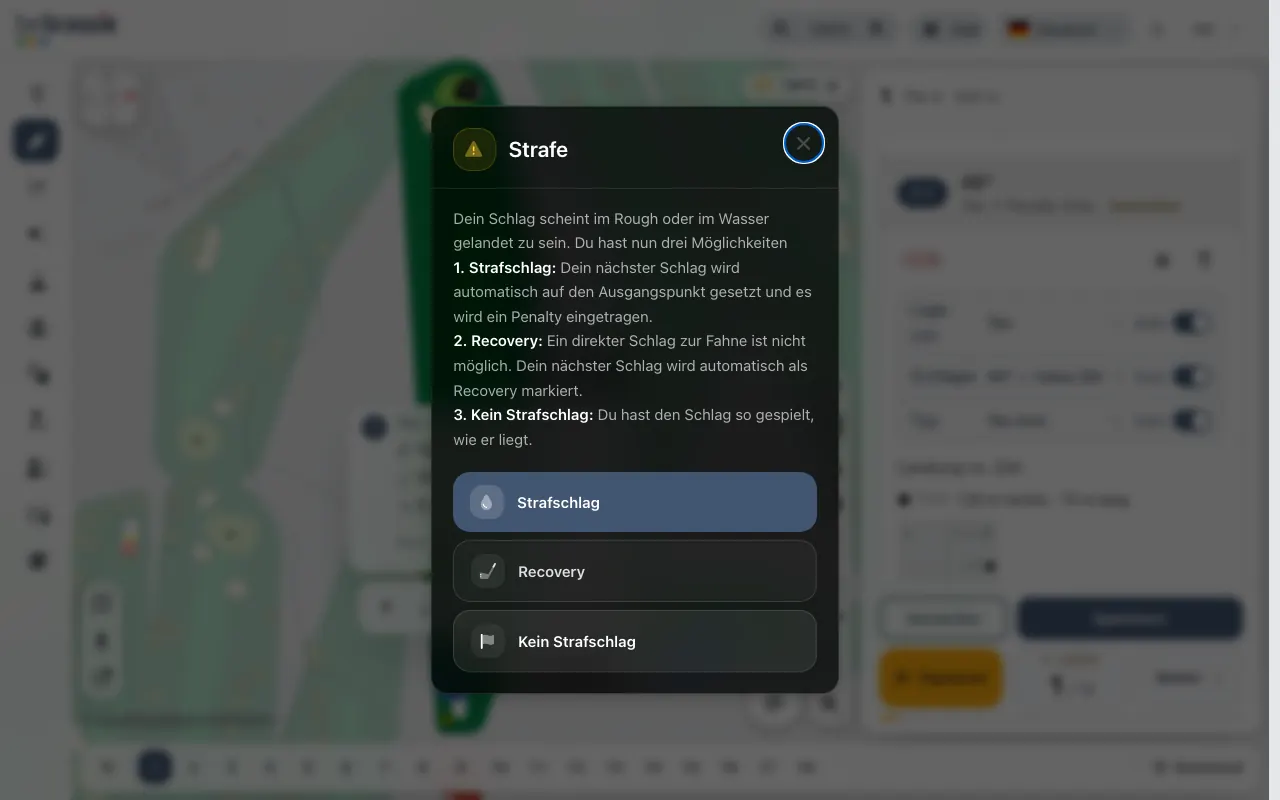
- The Penalty pop-up opens. Select Penalty stroke.
- The shot is marked as a penalty stroke and its line is dashed. The next shot jumps back to the point you last played from.
- Position the remaining shots as usual.
If no pop-up appears
The pop-up only appears if that spot on the map is recognized as out of bounds or a penalty area and another shot follows. Otherwise you enter the penalty stroke by hand:
- Drag the shot to where the ball came to rest and click it.
- Open the Type icon and select Penalty.
- Drag the next shot to the point you played on from and click Save.
The video on penalty strokes shows the older app. The procedure is the same, but the buttons look different today.
Ball lost in a penalty area (water hazard)
If your ball ends up in a penalty area, such as water, you decide: take a penalty stroke or play the ball as it lies. In bebrassie you record this during the post-round review, the step where you check your shots on the map.
Drag the shot on the map to roughly where the ball came to rest. The Penalty pop-up opens with three options:
- Penalty stroke: You couldn't play the ball. The shot is marked as a penalty stroke and its line is dashed. The next shot moves to the point where the ball crossed the edge of the penalty area.
- Recovery: You played the ball out without a penalty, and a direct shot at the flag wasn't possible. The shot gets the type Recovery.
- No penalty stroke: You played the ball quite normally, as it lay.
No shot is added. So the hole's score in the Scorecard must already include the penalty stroke.
The video on the penalty area shows the older app. Recovery is still a checkbox there, but the idea is the same.
Do I need an internet connection to use bebrassie on the golf course?
Reception is poor on many golf courses. bebrassie needs no data connection during the round, but the course must be saved on your phone for that.
You only need a data connection to download a course and to see the Courses nearby list (on Android COURSES NEARBY).
Download a course in advance
It's best to download the course over Wi-Fi, for example at home, at the hotel or in the clubhouse:
- iPhone: In the Play tab, open Courses and add the course with +.
- Android: Open Stored courses and add the course there.
Every course is also saved automatically as soon as you start a round on it. You will then find it on the iPhone under Downloaded courses, on Android under Stored courses.
When searching, it helps to try different spellings, because not every course is listed in our database under its most common name.
During the round
You can put your phone in airplane mode. That saves battery and you won't be disturbed during the round. You need a connection again afterward to upload the round.
Adjusting a round's Course Rating and Slope
Course Rating and Slope determine how a round feeds into your handicap. If the stored values are out of date, for example after a course has been re-rated, you can change them in bebrassie for a single round.
- Open the round with Edit your round.
- Open the Handicap section and turn on Count for handicap. Only then do the fields appear.
- Enter the values under Course rating and Slope.
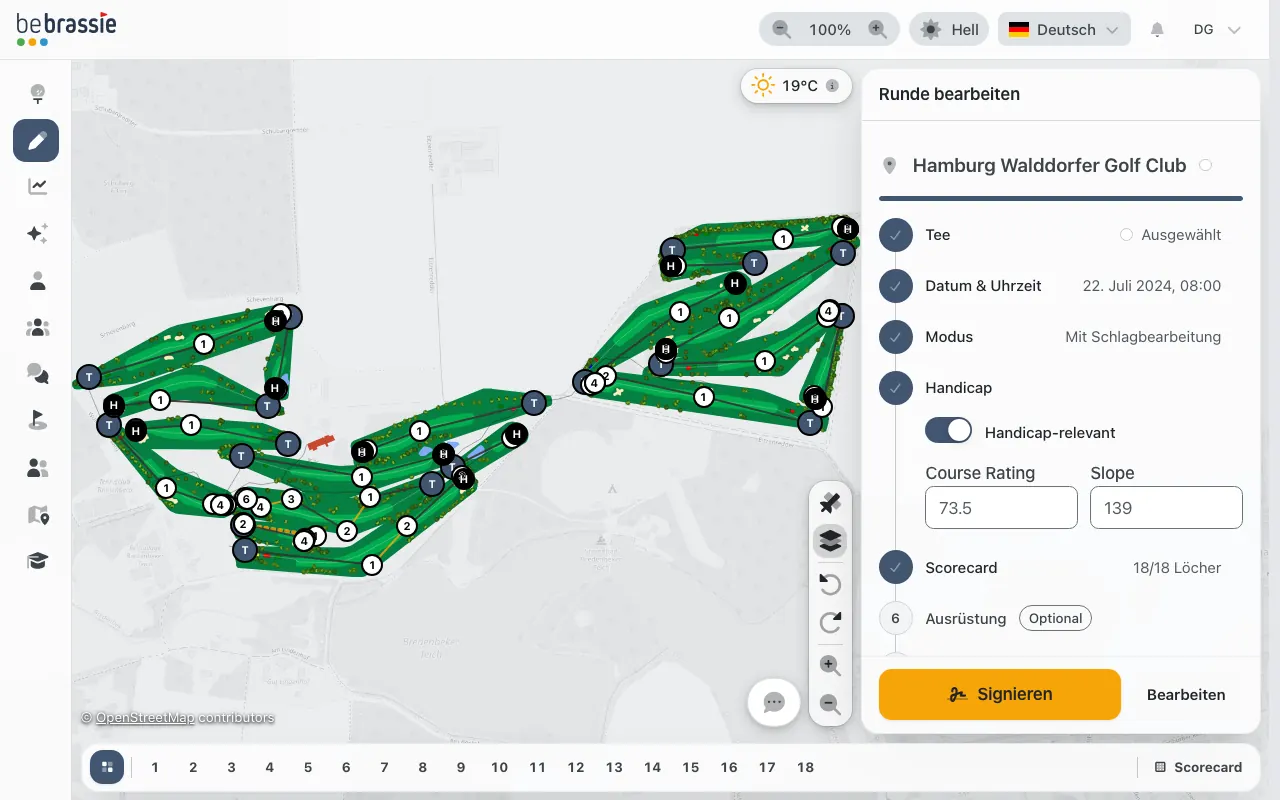
If you leave a field empty, the value of the chosen tee applies; it appears as gray text in the field. For a signed round, unsign it first.
Your change applies only to this one round. If the course's values are out of date in general, send us the new values at support@bebrassie.com.
I can't find a particular golf course?
Not every golf course is in the bebrassie database under the name you know. If you can't find a course, these steps usually help.
If you are standing on the course, the app shows it in the Courses nearby list, on Android under COURSES NEARBY.
If you are searching for a course without being there:
- First check the spelling and try other names.
- Shorter search terms succeed more often than the full name of the course or club. Leave out additions such as Golf Club or GC.
- For German names, also try writing umlauts with an e: oe, ue and ae.
If you still can't find the course, write to us at support@bebrassie.com and we will help you search.
How many golf courses are available in bebrassie?
If you play while traveling, you want to know in advance whether your course is included. bebrassie offers more than 40,000 golf courses worldwide.
The course data comes from our data supplier. You can search all our courses on its website: https://igolf.com/course-tour
Finding a course
In the app, the Courses nearby list shows the courses around your location when you start a round; on Android it is called COURSES NEARBY. In the browser, you search by name when you create a round. Results appear as you type.
When searching, leave out additions such as Golf Club or GC and enter only the plain name. Colloquial course names are often not recognized, so try other spellings.
If a course is missing or its name is wrong, write to us at support@bebrassie.com and we will take care of it.
Can I sign a round without a post-round review?
You won't always have time for a post-round review after a round, that is, for checking the individual shots on the map. That is why bebrassie also lets you finish a round with just its score.
- Open the round under your open rounds Open in the app with Edit your round.
- Open the Mode section and turn on Without shot editing.
- Confirm the prompt with Yes.
The round then appears under Signed rounds.
What this changes
- Stats: Strokes Gained and all values that need individual shots aren't available for this round. The app includes it in the scoring and ePR stats.
- Handicap: The round can still count. To do this, turn on the Count for handicap switch in the Handicap section. This works for complete 18-hole rounds or a complete front or back nine.
- Map and sharing: The round can't be viewed on the map and can't be shared.
Back to shot editing
Your shots are kept. If you turn Without shot editing off again and confirm the prompt, the round goes back to Unsigned rounds. You can then edit the shots and sign the round.
Strokes Gained shows you where you gain and lose shots. You only get that answer from rounds with a post-round review.
Can I delete a round?
Sometimes a round exists twice or doesn't belong in your stats. In bebrassie you can delete both signed and unsigned rounds.
- In your browser under EditRounds, open your unsigned rounds Open in the app or the Signed rounds tab.
- On the round, tap the trash can icon Delete round.
- Confirm the prompt with Delete.
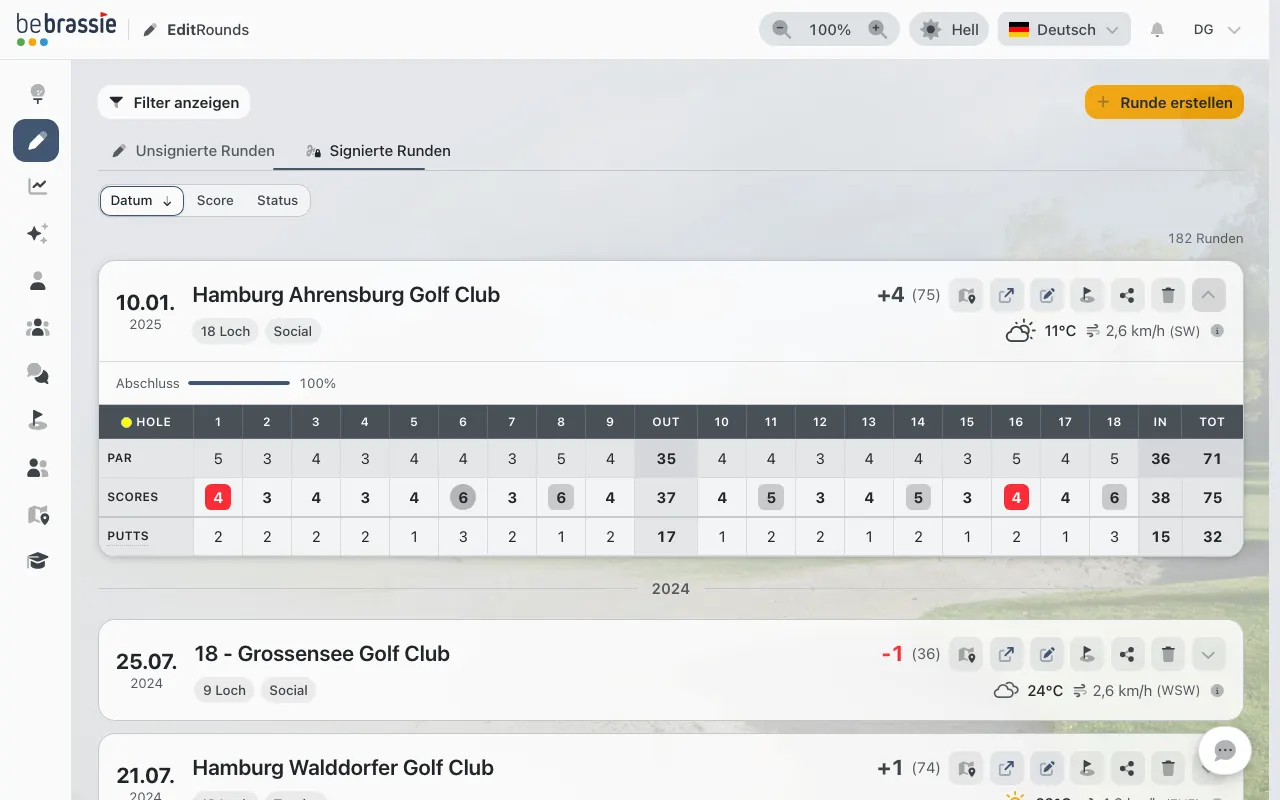
A signed round also disappears from your stats. Once you confirm, the round is deleted for good, and this can't be undone.
A round that hasn't been uploaded yet exists only on your phone. You delete it in the app under Upload Rounds, on Android under UPLOADROUNDS.
Can I also view my rounds and stats on a PC or tablet?
On a smartphone, maps and stats are small, and a larger screen is more comfortable for reviewing a round. That is why bebrassie also runs in the browser: sign in at app.bebrassie.com with your login details and you will land on your dashboard Open in the app.
Your data is on our server and not just on your smartphone. So you can see your rounds and stats on any device and share them with your coach or teammates.
Can I see on my smartphone which shots were detected?
During a round you might want to check whether bebrassie is really recording your shots. You can see this in the active round in the tab with the location icon, the third from the left, on both iPhone and Android. It lists the detected shots and the recorded GPS track, though with a time lag.
This is the raw data from the phone or watch. We optimize it further after the upload, so the round may look slightly different during the post-round review.
An alert for every detected shot
You can also have every detected shot reported to you:
- iPhone: More → App Settings, in the Shot Detection section, the Notification option.
- Android: In the settings, the Shot Detection Notification option.
- Apple Watch: On the settings screen, in the Shot Detection section, the Notify option.
bebrassie detects every swing, so you also get the alert after a practice swing. But bebrassie only counts the last swing at a position as a shot.
Can I record 9-hole rounds and analyze them statistically?
Not every round has 18 holes; alongside practice, there is often only time for a few holes. You can record shorter rounds with bebrassie and analyze them statistically without any trouble.
These holes help you gauge where you stand and show how you are developing. In the stats, the Number of holes filter narrows the analysis to 9 or 18.
Can I enter the club I used during the round?
For later analysis, it matters which club you hit a shot with. With bebrassie on the Apple Watch, you can set it right during the round.
When the watch detects a shot, the club selection appears, provided you have set up clubs. If it doesn't appear, probably no shot was detected. You can then place the shot manually with Add Shot and set the club there too.
The selection is not a club recommendation, even if it already appears after the practice swing: you choose the club yourself.
You can turn it off on the watch's second-to-last screen, the settings, with the Show club selection after detected shot option. There you also use Notify to set whether you get an alert for a detected shot.
Can I record a shot manually during the round?
Not every shot is detected automatically, especially in the short game. That is why bebrassie lets you place a shot by hand during the round, on your smartphone and on your watch. The shot is saved at the spot where you are standing.
- iPhone: Tap the golfer icon at the top of the header.
- Android: Tap the golfer icon on the map. This also works from the notification of the active round.
- Apple Watch: On the second screen from the left, tap Add Shot. A long press on the map places the shot somewhere else. On the watch you can also set the club.
- Wear OS: A long press on the display saves the shot, and the watch vibrates to confirm.
Putting from off the green (Texas wedge)
Sometimes the putter is the best choice even short of the green. For the stats in bebrassie, you then have to decide whether the shot should count as a putt or as an approach.
Under the international standard, putts only count as putts if the ball was played from the green.
If it was a pure putt and the fringe is of very high quality, it can make sense to record the shot as a putt with the putter, so under Type select Putt.
If the shot should go into the stats as an approach and not as a putt, define it as a chip with the putter, so under Type select Chip.
Satellite or map view?
When you review a round or plan a shot, the satellite image often shows more than the drawn map. bebrassie offers both views: during the round in the app, and afterward in the round editor in the browser.
In the round editor, the button on the map switches the view between Map, Satellite, Satellite tiles and Contrast. The tooltip on the button names the next view. Below it, Toggle map tiles shows or hides the map tiles.
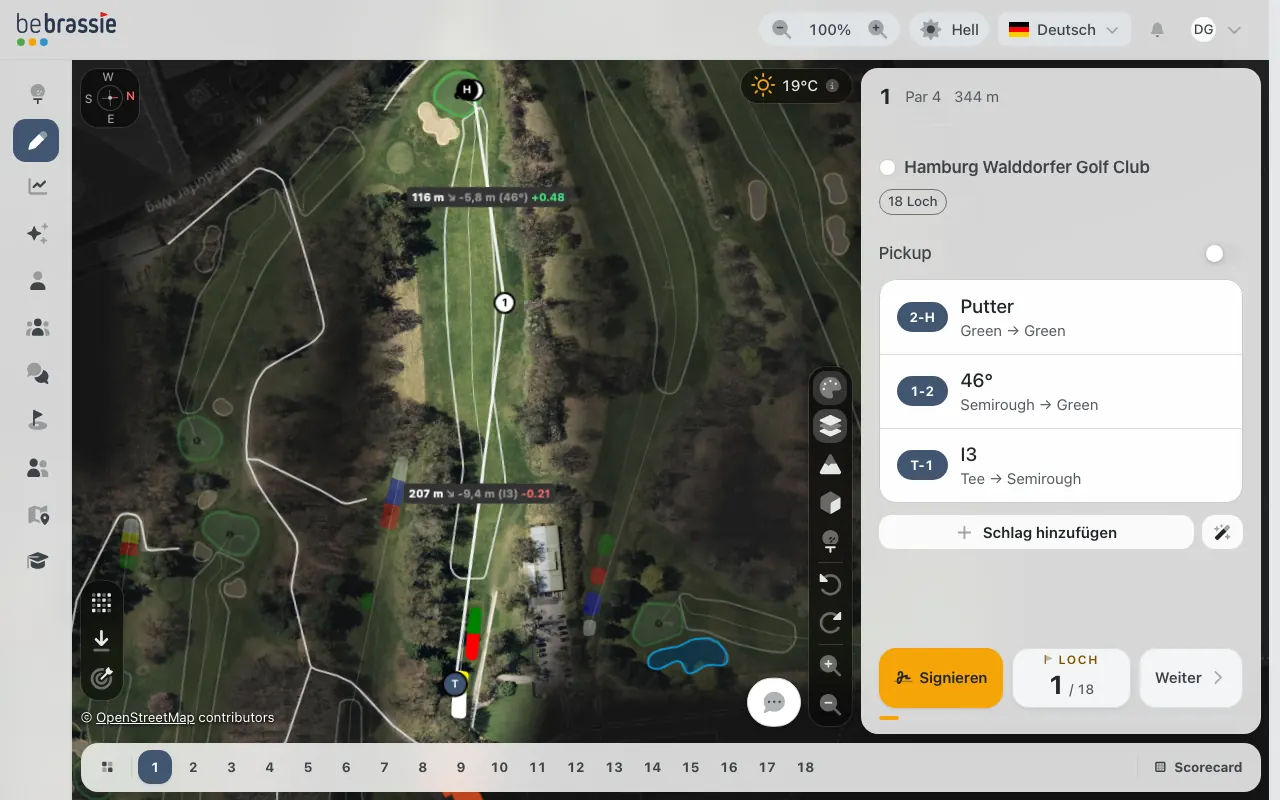
In the app, you switch on the hole's map with Satellite, on Android with SATELLITE VIEW.
During the post-round review, the satellite image often makes it clearer what the hole looked like. When planning a shot, it helps you spot landmarks and pick a good target point.
Starting the round on the Apple Watch
Even if you play with the Apple Watch, you start the round on the iPhone first. Open bebrassie and go through the start there: course, tee, Start round. At the end the app asks whether you also want to start the round on your Apple Watch. Tap START WATCH, and the start runs automatically on the watch.
This takes a few seconds because the course data has to load. You can follow the progress on the iPhone.
You also decide under Apple Fitness Tracking whether the watch records fitness data. This noticeably increases battery use, so we recommend turning it off where possible.
What are signed and unsigned rounds?
A round in bebrassie has two states: it is either still open or finished. Finishing it is called signing, and only that makes the round part of your stats.
- Unsigned rounds are rounds you have created or uploaded from the app but not yet finished. You can edit them. They don't count in your stats yet.
- Signed rounds are finished. They count in your stats and, if you have marked them with Count for handicap, in your handicap. Changes are locked until you select Unsign round.
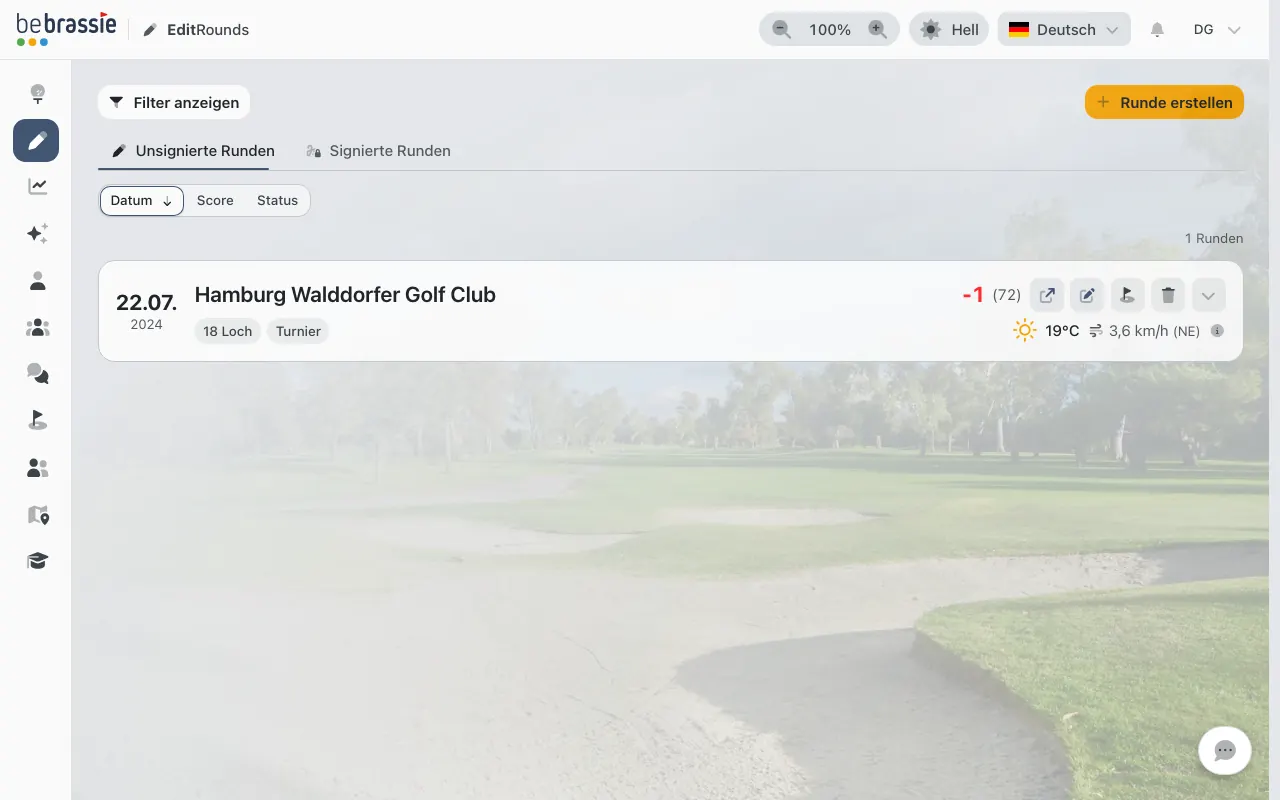
The Sign button appears as soon as the shots on the map match the Scorecard: on every hole played, shots and putts must match the score. Holes without a score don't count, so you don't have to have played all 18 holes.
Rounds Without shot editing are an exception. They appear under Signed rounds without being signed and provide fewer stats, for example no Strokes Gained.
You find what isn't finished yet under your open rounds Open in the app.
What filters are there in the stats?
A stat across all your rounds doesn't answer every question. That is why bebrassie lets you narrow it down, for example to tournament rounds or par 3 holes. You open the filters in Stats with Show filters.
Which filters you see depends on the stat: filters for individual shots exist only where individual shots are the subject.
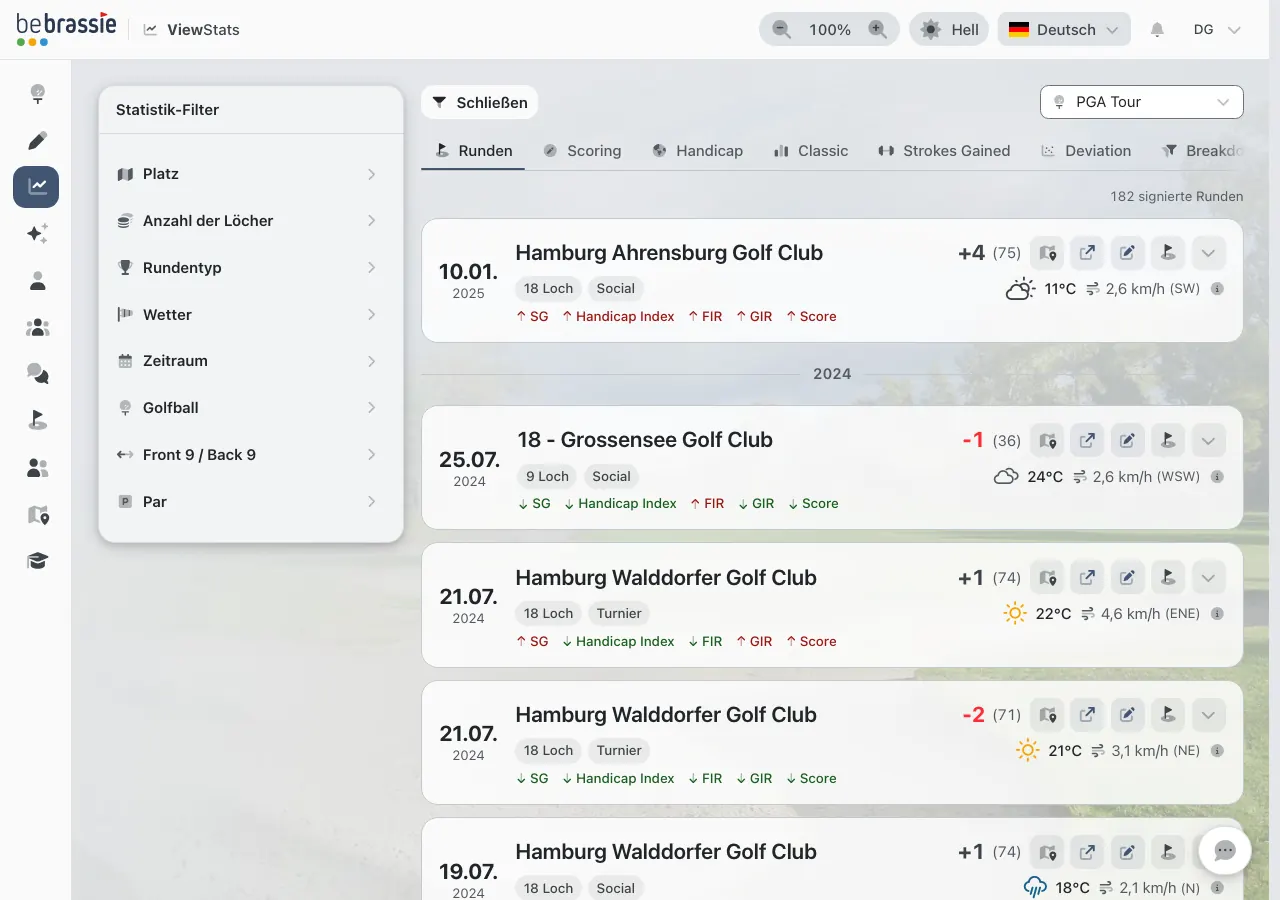
Filters for rounds
- Period: only rounds between two dates.
- Course: particular courses, or quickly just Home or Away.
- Number of rounds: the most recent rounds up to a certain number.
- Number of holes: for example, only 9-hole or only 18-hole rounds.
- Front 9 / Back 9: Front 9, Back 9 or 18 Holes.
- Par: holes with par 3, par 4 or par 5.
- Round type: Social, Tournament or Practice.
- Weather: Temperature and Wind speed.
- Golf ball: rounds with a particular ball.
Filters for shots
- Club: particular clubs, including those no longer in your bag.
- Type: for example, Tee shot or Chip.
- Lie: where the ball lay, for example fairway or bunker.
- Hole: particular hole numbers.
- Distance to hole: shots from a certain distance.
Excluding something
With most selection filters you can switch between IS and NOT. With NOT you see everything except your selection, for example all rounds except those on your home course.
Are shots counted automatically?
bebrassie detects your shots automatically. But the app doesn't count your score itself; you enter it by hand. Golf is too complex for that: the possibility of penalty strokes or air shots alone would make automatic score recording so error-prone that we don't offer it.
Recording the score after the hole or at the end of the round and entering your putts are an important basis for the automatic post-round review to work smoothly.
Editing putts and flag during the round
After the round you need to know where the flag was and where you putted from, and hardly anyone remembers that. That is why bebrassie lets you record both in the scorecard during the round, which saves you time in the post-round review.
- Open the scorecard and enter your score and the number of putts.
- Tap Edit Putts, on Android Edit putts.
- Move the flag and the putts to the spots you putted from and save the changes.
Distance circles show you the length categories as you do this. What matters most is that you place the putts in the right length range.
How do I add or delete a shot in the post-round review?
Sometimes a shot is missing on a hole, or one was recorded twice. In bebrassie you correct this during the post-round review, the step where you see a hole's shots on the map.
- Open the round under your open rounds Open in the app, then open the hole.
- Add shot places a new shot at the end of the hole. To put it between two shots, click the previous shot and select the Insert shot after icon.
- To remove a shot, click it and select the Delete shot icon.
- Click Save.
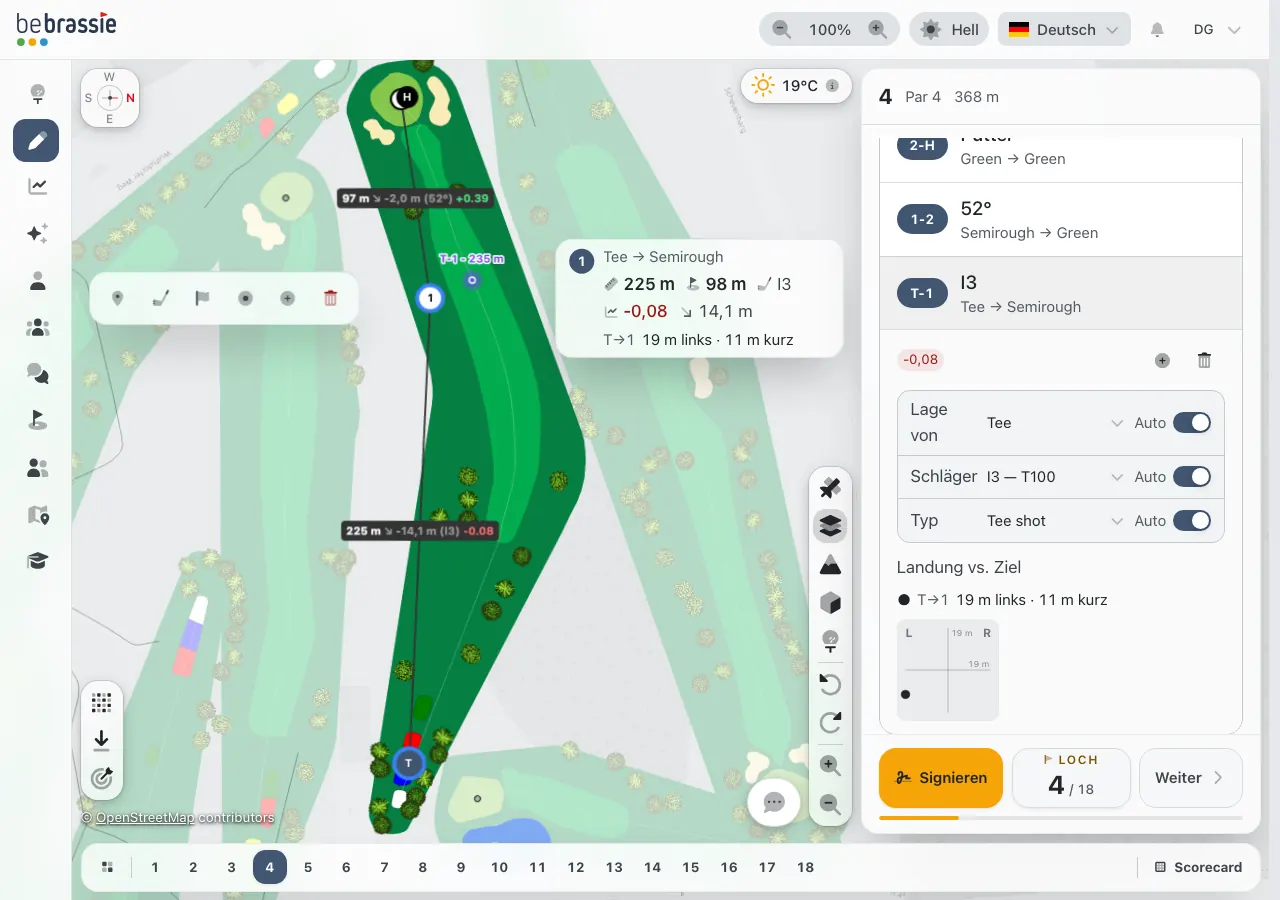
The score in the Scorecard then adjusts by itself. A shot's actions are icons; their name appears when you point at them with the mouse.
You can also do it the other way around and change the score in the Scorecard. The shots on the map then stay as they are, so at first the hole no longer matches the score. You can only sign once the two match.
How can I change the shot type?
Every shot has a type, for example Tee shot, Shot to green or Putt. bebrassie sets it automatically, which doesn't always fit: if you have to punch the ball sideways out of the woods, that isn't a Shot to green but a Recovery.
- In the round's hole view, click the shot on the map.
- Open the Type icon and select the right entry.
- Click Save.
A shot's actions are icons; their name appears when you point at them with the mouse.
The options are Tee shot, Recovery, Transport, Shot to green, Pitch, Bunker, Lob, Chip, Putt and Penalty.
As soon as you select a type, the Auto switch next to it turns off and the app no longer overwrites your choice. If you turn Auto back on, the automatic type applies again.
If you play from off the green with the putter, select Chip. Only shots of the type Putt count as putts, which keeps your putt count clean.
How can I change the lie of the ball?
Every shot starts from a lie, for example from the fairway or from a bunker. bebrassie reads it from the position on the map. That can be off, for example if the fairway is wider than drawn.
- In the round's hole view, click the shot on the map.
- Open the Lie icon and select the right entry under Lie from.
- Click Save.
A shot's actions are icons; their name appears when you point at them with the mouse.
As soon as you select a lie, the Auto switch next to it turns off. If you turn it back on, the lie from the map applies again.
The lie feeds into your Strokes Gained. The automatic lie is usually right, but if a value looks odd to you, it is worth checking.
How can I change the unit of measurement (meters or yards)?
bebrassie shows distances in meters or yards. You set the unit in your profile or in the app on your smartphone.
- In the browser: Open your Profile and under Unit of length select either Meter or Yard.
- In the iOS app: Open the More tab, then App Settings, and select the unit under Distance.
- In the Android app: Open Settings and select the unit under Distance Units.
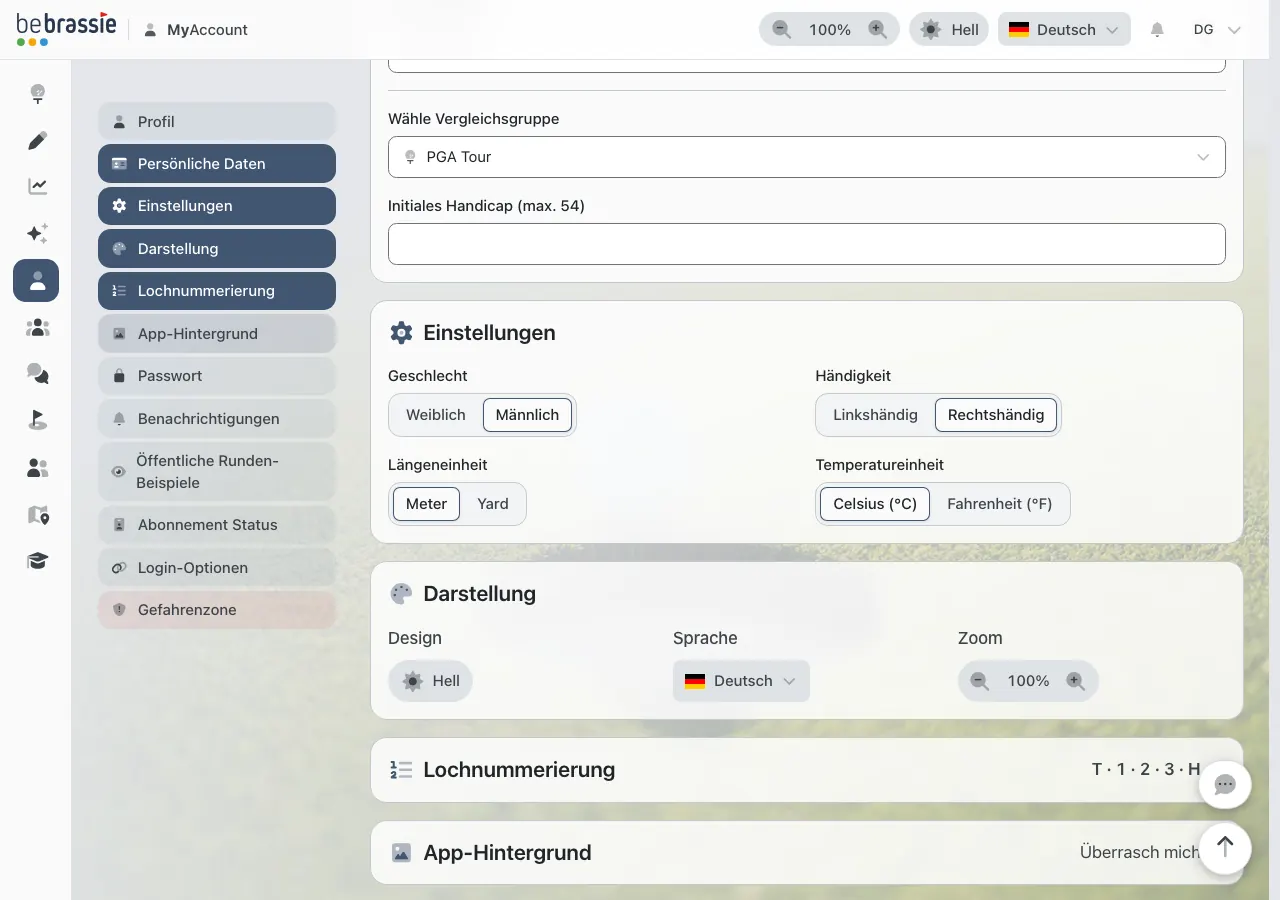
How can I change the unit of measurement (Celsius or Fahrenheit)?
bebrassie shows temperatures in Celsius or Fahrenheit. You set the unit in your profile or in the app on your smartphone.
- In the browser: Open your Profile and under Temperature unit select either Celsius (°C) or Fahrenheit (°F).
- In the iOS app: Open the More tab, then App Settings, and select the unit under Temperature.
- In the Android app: Open Settings and select the unit under Weather Units.
How can I choose a different club from the one bebrassie suggests?
bebrassie automatically looks for the right club for each shot based on your distances. But wind or a bad lie can mean you actually hit a different one. That is why you can set the club for each shot yourself.
Open the round in the round editor, select the hole and the shot, and change the entry under Club.
Once you have chosen the club by hand, it no longer changes automatically, even if you move the shot on the map. bebrassie then assumes your entry is correct. If you turn Auto back on, bebrassie takes over the selection again.
How do I upload a round to the server?
After tracking, a round has to reach the server so that you can edit and sign it in the browser. At the end of the round, the bebrassie app offers you Upload now and Upload Later for this. If the connection is weak, select Upload Later. The round then stays saved on your phone.
Uploading a round later
Wait until you have a stable connection, for example over Wi-Fi.
- iPhone: In the Rounds tab, open Upload Rounds. The rounds there are sorted by status, such as Ready to Upload and Uploaded. Upload round uploads a single round, Upload All uploads all the ready ones at once.
- Android: Open UPLOADROUNDS. It lists all locally saved rounds. Rounds with a check mark are already uploaded; for the others, you start the upload with the upload button.
You will then find the round under your unsigned rounds Open in the app.
How do I delete saved courses from the app?
Every course you play is saved locally on your phone. If you no longer need one, you can delete it individually in the bebrassie app.
- iPhone: In the Play or More tab, open Courses. Swipe left on the course and tap Delete, or use Edit at the top of the Downloaded courses page.
- Android: Open Stored courses, swipe on the course until the delete button appears, and confirm the prompt.
On the iPhone, you can't delete a course as long as rounds from it are still in your upload list. First delete those rounds under Upload Rounds.
How do I do the post-round review of a round?
After you play, your round is in bebrassie as an unsigned round. In the post-round review, you check the score and the shots on the map and finish the round by signing it. Only then do the stats show you where you gain and lose shots.
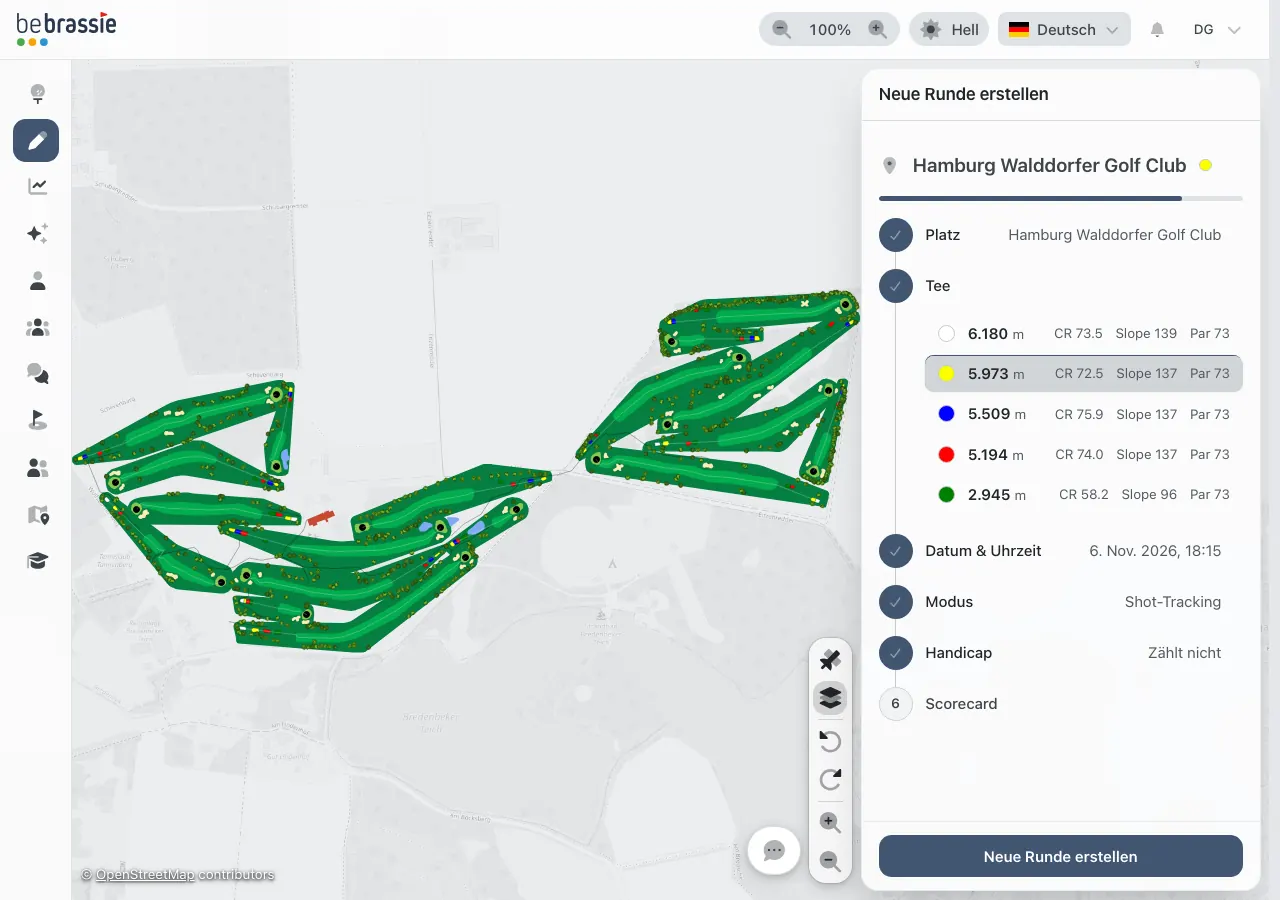
1. Open the round
You find it under your open rounds Open in the app. Click Edit your round there. If you played without the app, you create the round on the Rounds page with Create round and select the course and tee.
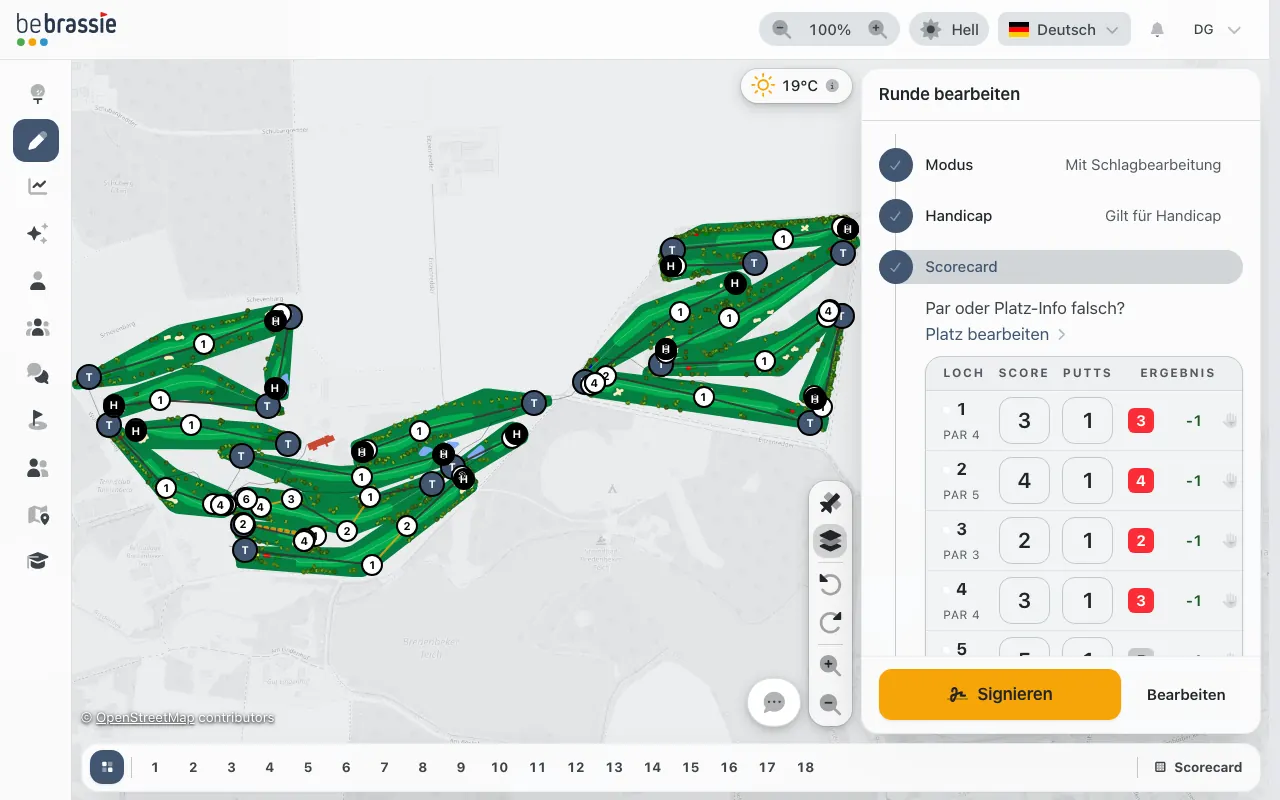
2. Fill in the scorecard
In the Scorecard section, enter the score and putts for each hole. The putts matter because they tell the app how many shots happened on the green. Leave holes you didn't play empty.
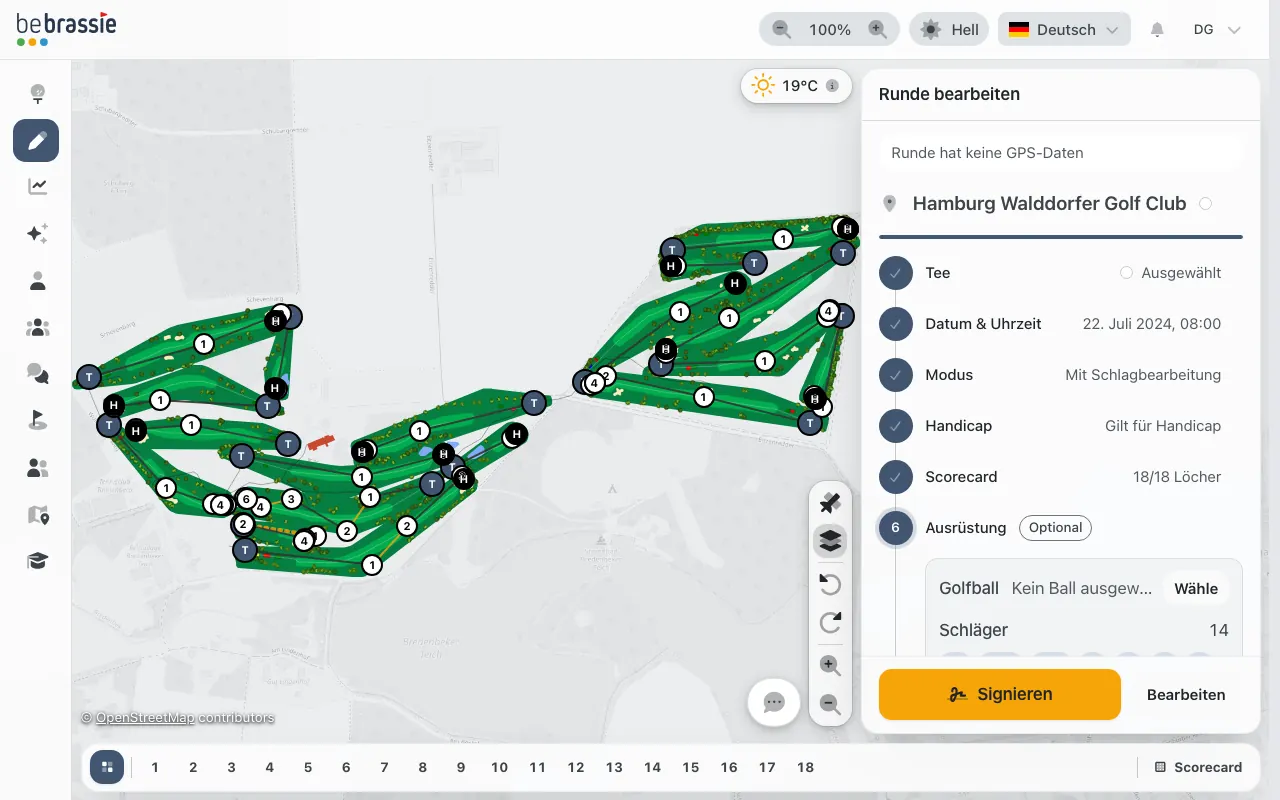
3. Check the round details
- Date & time: Correct the time if necessary.
- Handicap: Turn on Count for handicap if the round should count toward your handicap.
- Details: Select the Round type and use Note to record what was special, for example “greens were aerated”.
For the round type you can choose between Tournament, Practice and Social. How you classify it is up to you. A private round played by the rules often says as much as a tournament. A practice round with a second ball or a particular practice goal would rather distort the stats.
4. Go through the holes
Start editing takes you to the map of the first hole. If the round already matches the score, the button is called Edit. If a hole has a score but no shots yet, the app creates them as a suggestion.
- Drag each shot to where it really lay.
- Click a shot to change Lie, Club and Type with the icons, or to insert or delete a shot. Their name appears when you point at them with the mouse.
- Click Save and then Continue to go to the next hole.
To do all holes at once, the Shots section has the Auto-generate shots for all holes button.
5. Sign
As soon as the shots match the score on every hole played, Sign appears. The round is then locked and counts in your stats. If you want to change anything else, select Unsign round.
Setting your own target for a shot (intended target)
Not every shot aims at the middle of the fairway or at the flag. If you deliberately play to the safe side, you should be measured against that. That is why bebrassie lets you set your own target per shot during the post-round review.
- In the round's hole view, click the shot on the map.
- Click the target icon. When you point at it with the mouse, it is called Default target as long as no target of your own is set, and Custom target after that. A target marker appears on the hole.
- Drag the marker to the spot you aimed at.
- Click Save.
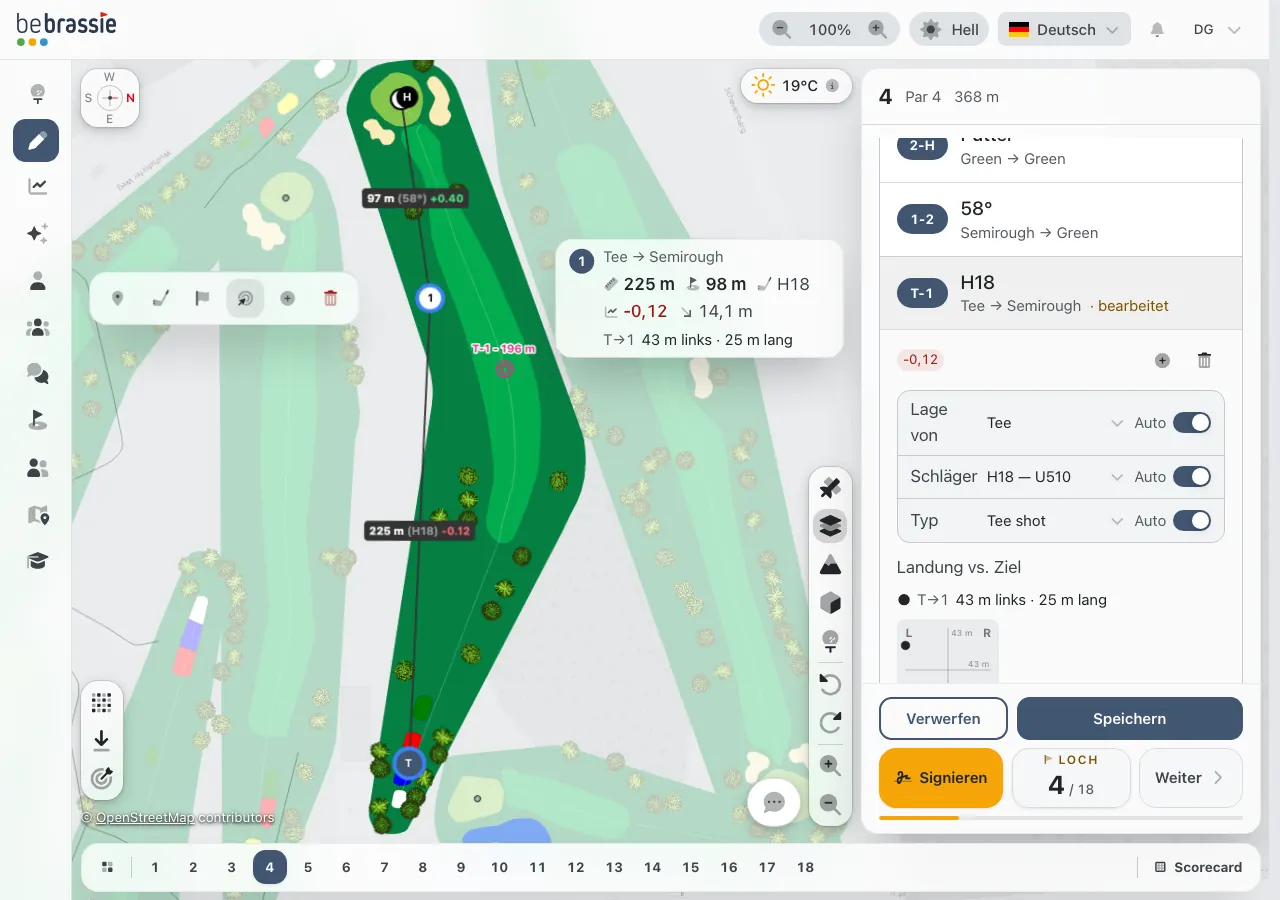
The shot's deviation is then measured against your target. You don't have to do this for every shot. Without a target of your own, the default target stays. Clicking the icon again removes your target. Penalty strokes have no target.
You can also adjust your last signed round Open in the app this way afterward. To do that, unsign it first.
The video on setting your own target shows the older app. The button is still called Target there, but the idea is the same.
How can I share my round?
You can show a round you have played from bebrassie through a link, for example to your coach or your flight. Anyone with the link can see the round, even without an account.
- Open Signed rounds or go straight to your last signed round Open in the app.
- Select the Share round action.
- Turn on Share round. The link then appears.
- Copy it with Copy or send it directly, for example by WhatsApp or email.
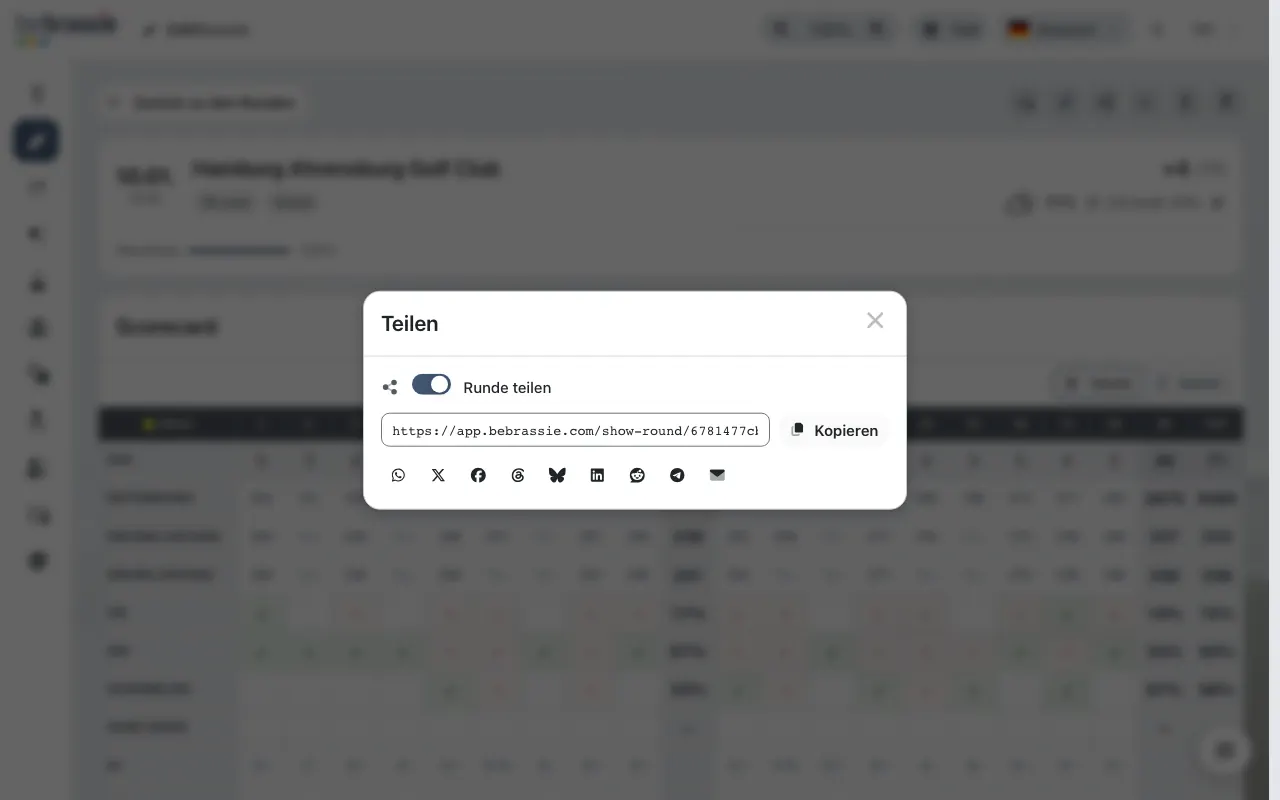
The whole round is always shared; you can't select individual holes. If you turn Share round off again, the round is no longer shared.
Only a signed round can be shared. Rounds Without shot editing have no shots to show and so can't be shared.
In a group, members with the appropriate right can also view your rounds without a link.
How does my round count for handicap?
For a round to count in your handicap, you mark it accordingly in bebrassie. You can do this when you create the round and during the post-round review.
- Open the round with Edit your round.
- Open the Handicap section and turn on Count for handicap.
- Check Course rating and Slope. If you enter nothing, the values of the chosen tee apply.
The switch is only available for a complete 18-hole round or a complete front or back nine. Otherwise the app shows a notice.
The round feeds into your handicap as soon as it is signed. It is then locked. If you want to change anything, first select Unsign round.
Rounds Without shot editing can count too, even without signing. If you create a new round as a score-only round, you set the switch right at creation, once the scores are entered.
Why aren't all my shots detected?
If bebrassie only detects some of your shots, it is usually down to the handedness setting or where you carry your phone.
Check your handedness
Shot detection works based on your handedness. A wrong setting is the main reason for too few detected shots, especially if long shots are no longer detected at all.
- iPhone: More → App Settings → Handedness
- Android: In the settings under Handedness
- Apple Watch: On the settings screen under Handedness
- Browser: In MyAccount under Handedness
Carry your phone correctly
The best position is one of your back trouser pockets. The phone should have as little room to move as possible, so the pocket should be tight. It can also detect shots in the front pocket.
Check and help along
Turn on the notification for detected shots. That way you see whether shots are perhaps already being detected during your practice swings rather than when you change your routine.
If you get no notification after a shot, you can place it by hand: on the Apple Watch with Add Shot on the second screen from the left, on the phone with the golfer icon.
Does bebrassie also have Stableford?
Many golfers play their rounds under Stableford and wonder whether bebrassie reflects it. Yes: bebrassie shows Stableford points in the scorecard. You get two points for a net par and one more for each shot below that.
In the browser, the Stableford row is in the scorecard of a round you recorded with shots. You can see it, for example, when you open your last signed round Open in the app. It isn't shown for a round that contains only the score.
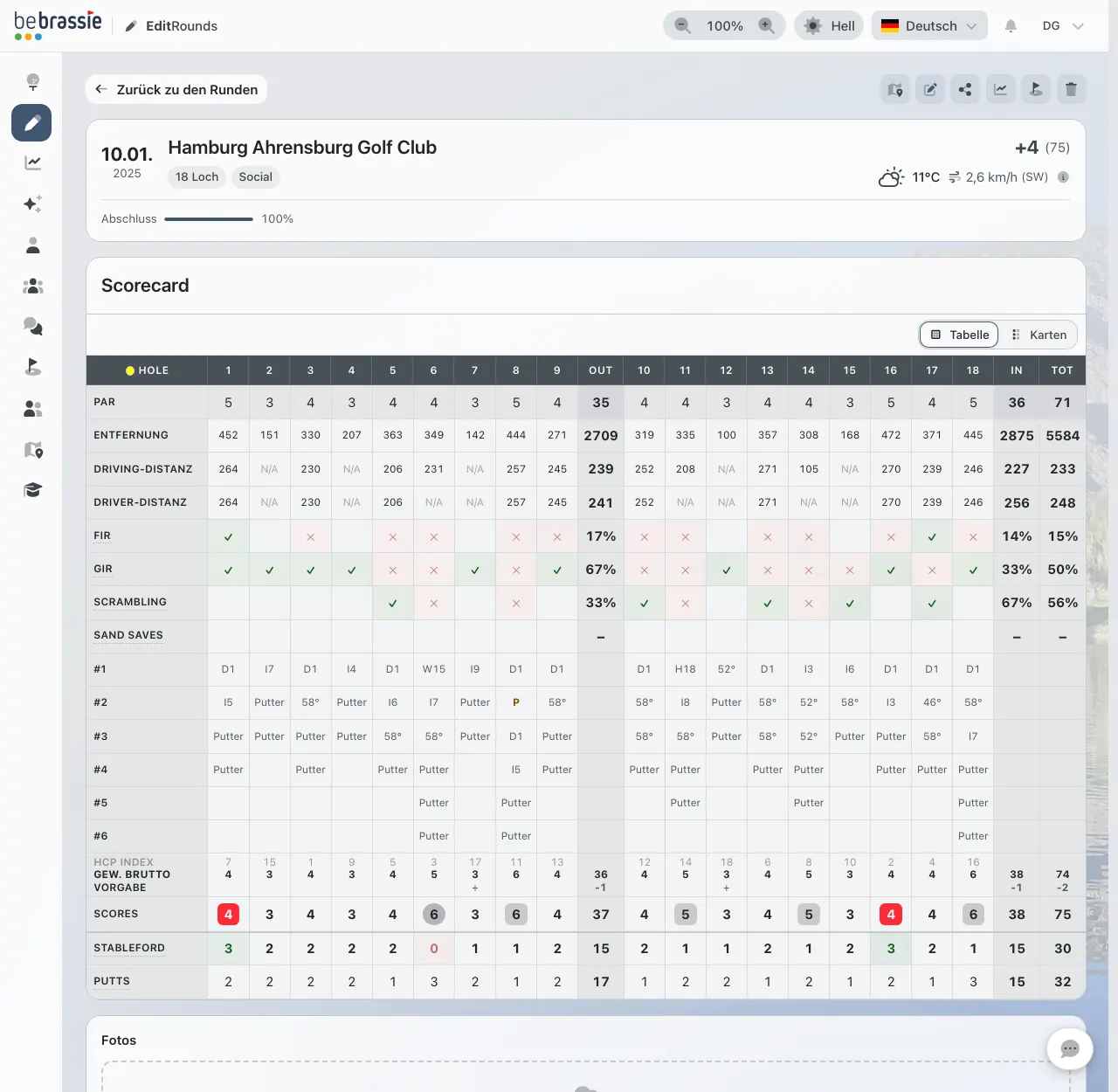
On the iPhone, you turn on Show Stableford when you start the round. The Android app doesn't show Stableford points.
Why you should still record every hole to the end
bebrassie is meant to show your strengths and weaknesses, and for that every hole needs a score. In Stableford you can stop a hole and strike it. Then exactly the shots responsible for the weak performance are missing.
So it's best to always write down the maximum score and simulate the shots you no longer played as honestly as you can. Enter them the way you would have played them had the hole continued normally.
How can I reduce battery use when using bebrassie?
A round of golf takes hours, and your phone should last to the end. The most important point first: bebrassie needs no active internet connection during the round. As soon as the course is saved on your phone, which happens automatically when you start a round with an active connection, you can switch to airplane mode. This cuts power use sharply, and you play without interruptions from messages or calls.
When starting on the Apple Watch, you can also turn off Apple Fitness Tracking. This also extends battery life.
Battery problems usually aren't caused by the app, though, but by conditions on site. If the course is in a dead zone or between two cell towers, for example, the phone constantly tries to find a network, and according to the providers that uses the most power.
Can I “strike” a hole in bebrassie?
When a hole goes wrong, you sometimes just pick up the ball and strike the hole. In bebrassie this is called Pickup. It is possible, but we advise against it, because you then lose exactly the data for this hole.
How Pickup works
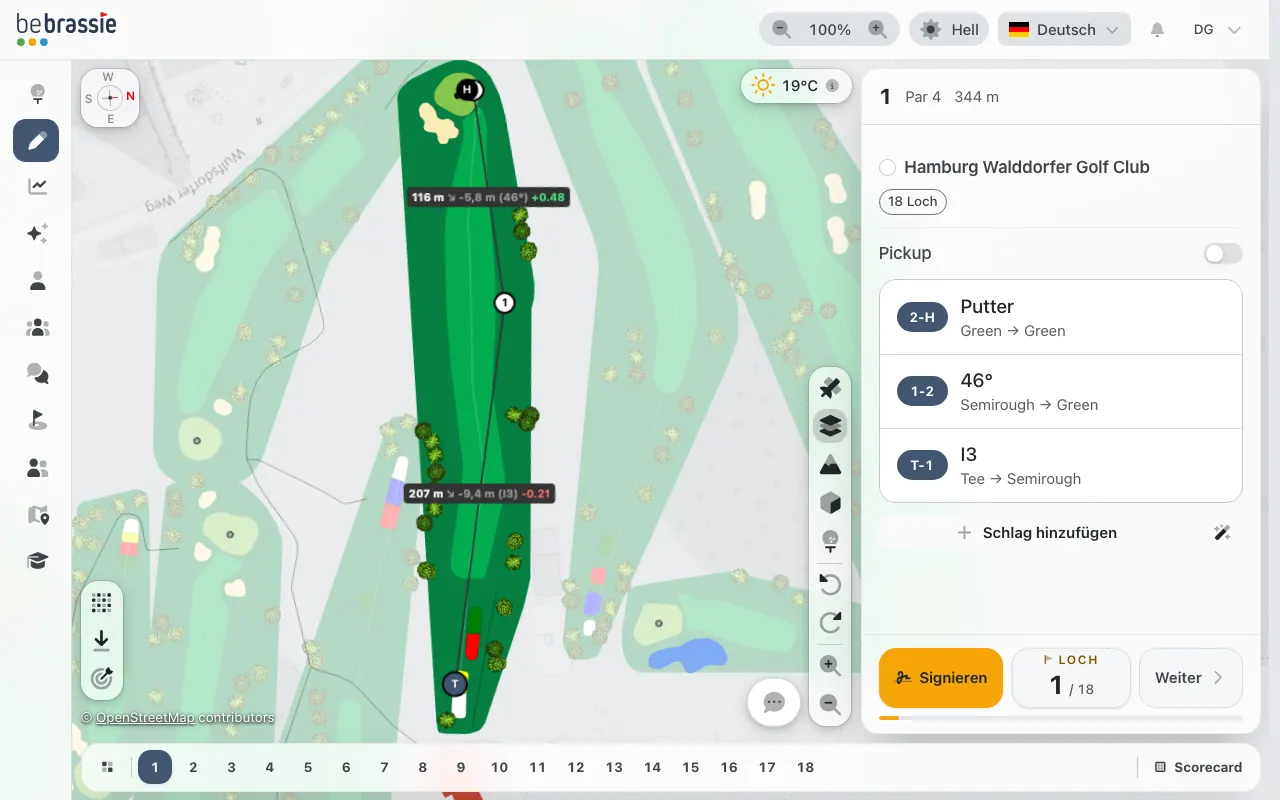
Open the hole in the round editor and turn on Pickup. The hole then counts as par + 5, and you can no longer edit its shots. The same switch undoes the pickup.
What you can do instead
Enter all the shots you really played up to the point you picked up, exactly as they were. Then work out the result you would probably have made had you played on, and enter the fictional remaining shots to match your average.
In our view, this keeps the analysis most realistic.
Using bebrassie in outdoor and indoor practice
On the range or in an indoor bay, the connection to the course is often missing. With bebrassie you can play a round there hole by hole: you create it in advance with a target score and then play, shot by shot, what the course demands of you.
- In your browser, open EditRounds and select Create round.
- Select the course and tee. Leave Score-only round (no shot tracking) off so that you can edit the shots.
- Enter your target score in the scorecard. This can be par on every hole, or just the shots to the green without putts.
- Finish with Create a new round and edit the round hole by hole.
If you need one more shot than planned, you add it on the hole with Add shot.
Visualizing gets better each time, and this is a good way to prepare for a course, including unfamiliar ones, for example on a golf vacation.
As long as you don't sign such a round, it doesn't feed into your stats. If you do sign it, set the Round type to Practice so that you can filter it out of the stats.
Oliver Neumann explains the idea in a video. It dates from 2023 and shows the older version of the app.
Yardage Book on the Apple Watch
On the way from the tee to the green, the bebrassie Yardage Book on the Apple Watch helps you plan your next shot.
From the tee the hole is shown, and at a length of 230 m the shot-planning display starts. With the plus and minus buttons you change the planned shot length in 10 m steps.
If you get closer to the green than the planned shot distance, the watch shows the green view with the distances to the front, middle and back of the green. So if you don't change the planned shot distance, the green appears from 230 m to the front of the green. If you adjust it, for example to 170 m, it appears only from that distance.
The crown zooms in both views.
Editing chips and pitches during the round
The automatic shot detection in bebrassie is less reliable in the short game. When you are playing, a trick helps: for a chip with two putts, enter three putts in the scorecard. Then tap Edit Putts, on Android Edit putts, and drag the first putt to where you chipped from.
The number of putts in the round summary is then no longer right. But during editing this shot is recognized as a chip, and your putts on that hole drop back to two. This saves you time in the post-round review.
How does tracking with the Apple Watch work?
With the Apple Watch you record a round of golf in bebrassie without taking your phone in your hand. This is how a round goes.
Starting on the iPhone
Open bebrassie on the iPhone and select the golf course, for example from the Courses nearby list. Select the tee and tap Start round. You can then start tracking on the watch with START WATCH.
There you also decide under Apple Fitness Tracking whether the watch records fitness data. This can shorten battery life considerably, so we tend to advise turning it off. But then you get no data for your Health app.
The start on the watch takes a few seconds because the course data is loaded and transferred.
During the round
The watch shows you the Yardage Book with the fairway view for shot planning. The view changes with your position: when you are close enough to reach the green with one shot, you see the green with the distances to its front, middle and back. In shot planning, plus and minus change the length of your planned shot, so you see whether it brings hazards into play. The crown zooms.
On another screen you enter score and putts, and they sync with your phone. With Add Shot you record a shot by hand if it wasn't detected or if you want to be sure in the short game.
bebrassie detects all your swings, including practice swings. If you have the notification turned on, you get an alert. After a detected shot you can set the club, even after the practice swing. In the automatic post-round review, the swings detected at one spot become one shot, and the club chosen there is carried over.
At the end of the round
Stop the round on the Apple Watch and confirm the next steps on the iPhone. Check the score there once more and upload the round to the server with Upload now.
If the connection is poor, select Upload Later and upload the round later in the Rounds tab under Upload Rounds.
Identifying weaknesses with bebrassie
Many golfers practice without knowing where they lose the most shots on the course. Perhaps the biggest benefit of round analyses like those in bebrassie is that you recognize your weaknesses and align your practice with them. Your dashboard Open in the app is a good place to start.
Oliver Neumann explains in a video how you can interpret the data. It dates from 2020 and shows the older version of the app.
How do I enter the score and putts correctly in the scorecard?
For the analysis in bebrassie to be right, the scorecard has to be filled in correctly. Under Score always enter your total number of shots, and under Putts the putts included in that total.
How does the automatic post-round review work?
When you track your round with a smartphone or smartwatch, bebrassie detects your long-game shots and prepares them for the post-round review. You then check what was detected and add what is missing.
Check detected shots
After the upload, you find the round under your unsigned rounds Open in the app. What the app detected remains a suggestion until you have checked it: you accept it, move it or discard it.
Fill in shots automatically
You don't have to place every shot yourself. The round editor offers two shortcuts:
- Auto-fill remaining shots: the magic wand icon next to Add shot adds a hole's missing shots.
- Auto-generate shots for all holes does this for the whole round.
The app takes detected shots and the score from your scorecard into account.
How the club is chosen
If shot detection supplies a club, that one applies. Otherwise the app picks the club whose distance, as stored in your profile, fits the distance of the shot. Elevation changes are taken into account. The app can't know the lie of the ball or the wind. In those cases, you change the club on the shot on the hole map. The app doesn't overwrite a club you chose by hand.
Short game
In the short game, shots go undetected more often because the movement is less intense. You enter those shots, putts and the flag position by hand, either during the round or in the post-round review. Doing this on the course shortens the review considerably.
How long does the post-round review of a round take?
After each tracked round, you check and complete your shots in the post-round review before bebrassie analyzes them. Experienced users need between 5 and 8 minutes for this. It depends on how much groundwork was already done during the round.
If you enter your putts and the flag position during the round, you may even be done in less than 5 minutes afterward. If you haven't done anything during the round, it takes a little longer.
For calculating Strokes Gained, it makes no difference which clubs you enter. If you don't want to gain insights into your club choice, you can simply skip assigning clubs.
It is usually faster on a computer or tablet. Sign in at app.bebrassie.com with your login details. There you have the same access to your rounds and data, and what is still open is under your unsigned rounds Open in the app.
How much battery does bebrassie use?
There is no general answer to how much battery bebrassie uses on your phone.
It depends on various factors, such as whether the phone often has to connect to a network during the round, or which other apps and Bluetooth connections are running at the same time.
If you have started the round or downloaded the course in advance, you can also use the app in airplane mode.
Battery use is then 5–10% per 9 holes.
Where should my phone be during tracking?
Where your phone is during the round helps determine how well bebrassie detects your shots. You get the best shot detection with a smartwatch. You can then also put your phone in your bag. But the watch has to save data on the phone regularly, so don't stay too far from your bag for long.
If you track with just your phone, it should be in one of your back trouser pockets. A front pocket works too, but the phone sometimes has too much “play” there.
If the phone is in your golf bag, no shot can be detected, but your walking path is still recorded. During the post-round review, the walking paths usually show well where shots were probably played.
Since you don't take the bag onto the green, this information is missing for putting. We then recommend entering putts and flag on the way to the next tee.